Help center
Keep billing when the internet is down
The POS counter keeps making bills without internet. Bills are saved on the device and upload by themselves when the connection is back. Learn what the offline signs mean and where to check bills that are waiting to sync.
Updated
Internet drops and load-shedding should not stop the counter. Nafaa keeps a copy of your products and customers on each device. When the connection goes, the counter carries on: bills are saved on that computer, tablet or phone and sent to the server when it comes back.
Bill offline
Step 1: Open the counter while online first
Log in and open the POS once with internet on each device. Nafaa saves products, prices and customers on the device and refreshes them in the background.
Step 2: Notice the offline signs
When the connection drops, an orange bar says Aap offline hain — sales queue me save hongi (you are offline, sales will be saved in a queue), the POS shows Offline next to its name, and the top bar sync button shows Offline.
Step 3: Keep billing as usual
Scan, search and take payment the same way. Each bill made offline is saved on the device with a number starting with
OFFLINE-and the device code, so two counters never clash.Step 4: Watch the waiting count
The sync button shows how many bills are waiting, for example Offline · 3. Click it to see Sales and Other changes waiting.
Step 5: Let it sync
When the internet is back the bills upload by themselves; the button returns to Synced. To push them at once, click the sync button and then Sync now.
Step 6: Check problems in the Sync center
If a bill fails to upload, the button shows failed. Click Open Sync Center in the sync panel to see the bill and retry.
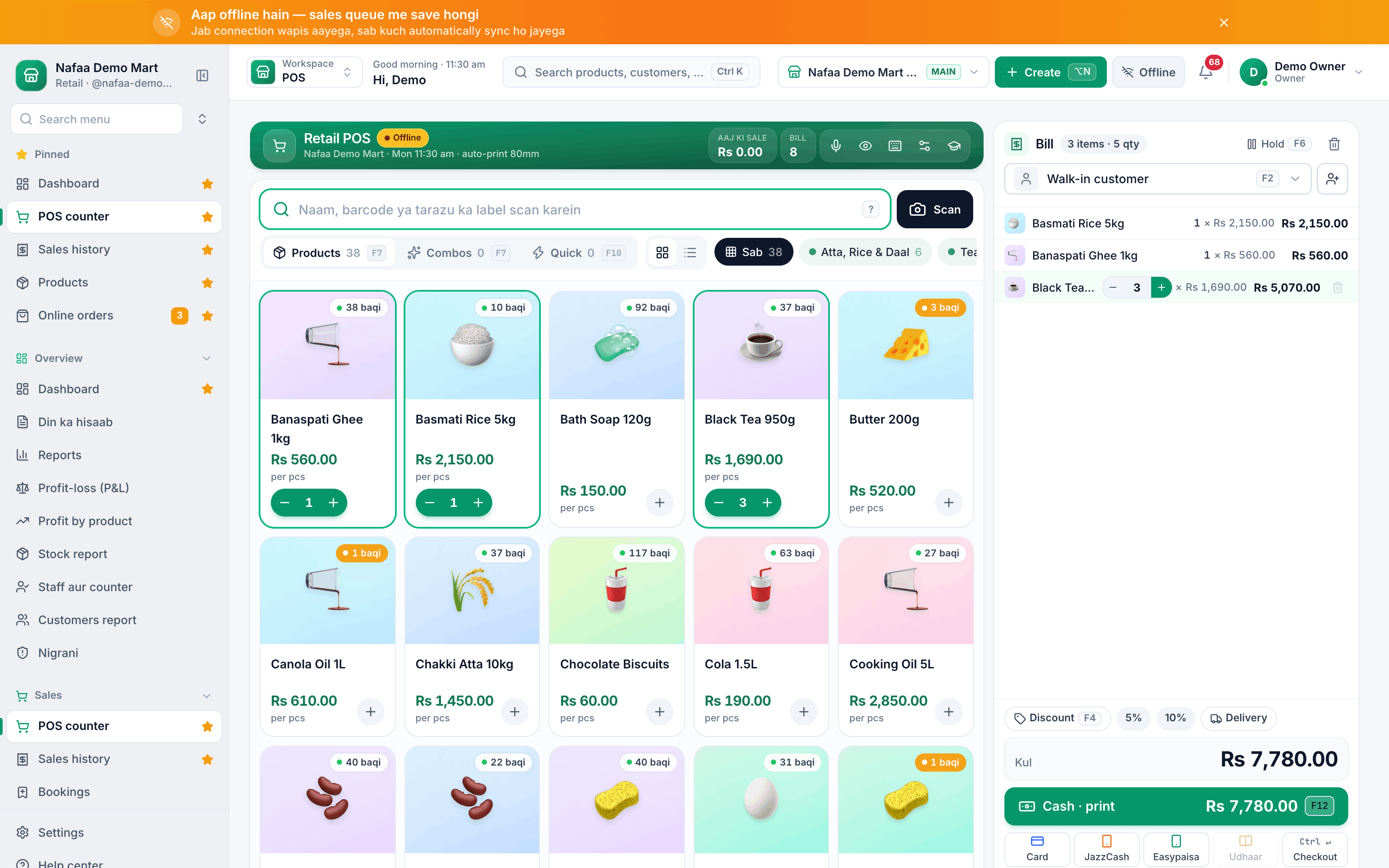
- Offline bar
- Offline badge
- Sync status
Questions
Does stock update for offline bills?
Yes, when the bills reach the server. Until then other counters will not see that stock change.
Can I print a receipt offline?
Yes. The receipt is built from the copy of your products on the device, and printing does not need internet.
Related
- Product
Offline POS
Nafaa keeps billing when the internet drops. Products, prices and customers are kept on the device, new sales, khata payments, customers and expenses wait in an offline queue, and everything syncs to your account on its own when the connection returns, with a Sync Center that shows what is still waiting. - Product
POS
Nafaa POS is the billing counter for any business: scan a barcode or tap a quick key, sell by piece, dozen or carton, take cash, card, JazzCash, Easypaisa or khata in one bill, print or WhatsApp the receipt, and keep billing when the internet drops. It runs on the phone, tablet or computer you already have. - Page
Devices, login and counter hardware
Nafaa runs in the browser on a computer, tablet or phone. Learn how to log in and keep a device remembered, connect a receipt printer, cash drawer, barcode scanner, scale or customer screen on each counter, and log out a lost device. - Page
Set up receipts and a receipt printer
Connect a thermal receipt printer by USB, serial or Bluetooth, print a test bill, set 80 mm or 58 mm paper, choose what the receipt shows, and open the cash drawer automatically on cash sales.
Terms used here
Offline POS
An offline POS keeps making bills when the internet is down, saving them on the device and sending them to the server when the connection returns.Cloud POS
A cloud POS is billing software whose data is stored on internet servers, so sales and stock can be seen from any device and branch.POS (Point of Sale)
The point of sale is where a sale is completed: items are scanned or picked, payment is taken and a receipt is given.
Keep billing when the internet or power drops
Nafaa saves bills on the device and syncs when the connection returns. Try it free for 7 days.