Help center
Restaurant: KOT, tables and the kitchen screen
Take a dine-in order from the table floor, send it to the kitchen as a KOT, follow it on the kitchen screen, add more items later, print the bill at the table and close it with payment. Takeaway and delivery orders use the same order screen.
Updated
A restaurant in Nafaa works from two screens. Tables (the floor plan) shows every table with its status and running bill, and Kitchen (KOT) shows the kitchen order tickets the cooks work from. Both are in the sidebar of a restaurant account; you can also type their names in Search menu.
Table colours tell the floor staff what to do: green is Khaali (free), red is Bhari (occupied, with the running bill and how long the guests have been seated), a purple edge is Bill print (bill given, waiting for payment), blue is Safai (needs cleaning) and yellow is Reserved. The floor refreshes every 15 seconds.
Before the first order, add your tables with Floor setup → Nayi table (number, section such as Hall or Rooftop, and seats), and your dishes under Menu.
Take a table order and send the KOT
Step 1: Open the table
On Tables, click a green table and choose Order lein (take order). The order screen opens with that table selected; set the number of guests with + and −.
Step 2: Add dishes
Tap dishes from the menu grid, or type a name or code in Dish ka naam ya code… and press Enter. Dishes with options ask for size and add-ons. Use Note on a line for the kitchen, for example "kam mirch".
Step 3: Send it to the kitchen
Press Kitchen bhejein (send to kitchen) or F9. Leave Kitchen ticket (KOT) print karein ticked to print the ticket on the kitchen printer as well. The table turns red with the running bill.
Step 4: Cook from the kitchen screen
On Kitchen (KOT) the ticket appears under Naye (new). Cooks press Shuru to start, Tayyar when the plate is ready and De diya once it has gone out. A ticket turns yellow after 10 minutes and red after 20.
Step 5: Add more items later
Click the red table and choose Aur item. Only the new items go to the kitchen, as a new KOT; the bill keeps all of them.
Step 6: Print the bill
Click the table and choose Bill print. The guests get the bill and the table shows Bill print until they pay.
Step 7: Take payment and free the table
Open the order and press Payment. Once paid, the table moves to Safai; after cleaning, choose Saaf ho gayi — khaali to make it free again.
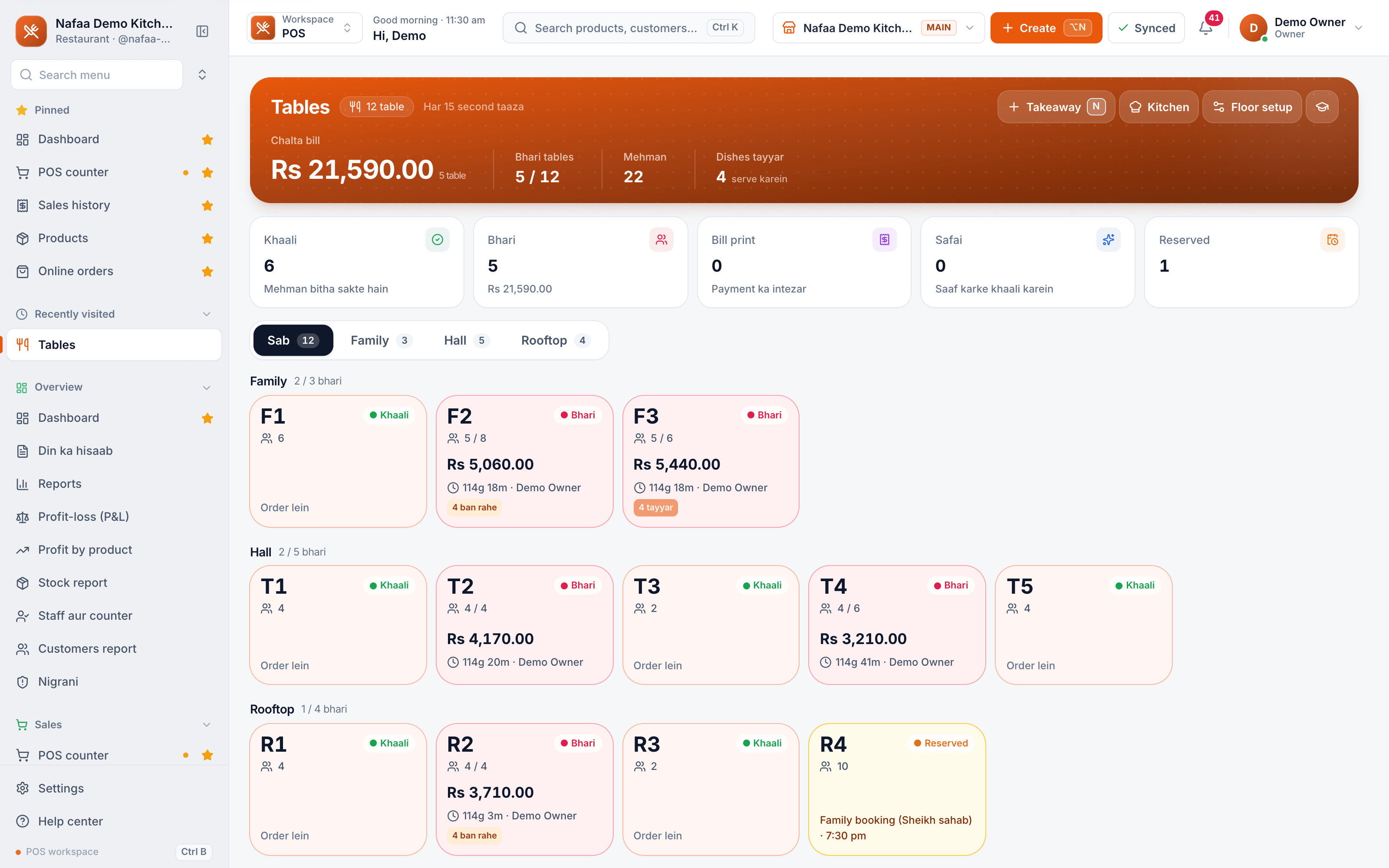
- Tables by section
- Bhari: running bill and time
- Khaali: click → Order lein
- Reserved with guest and time
- Takeaway (N) and Kitchen
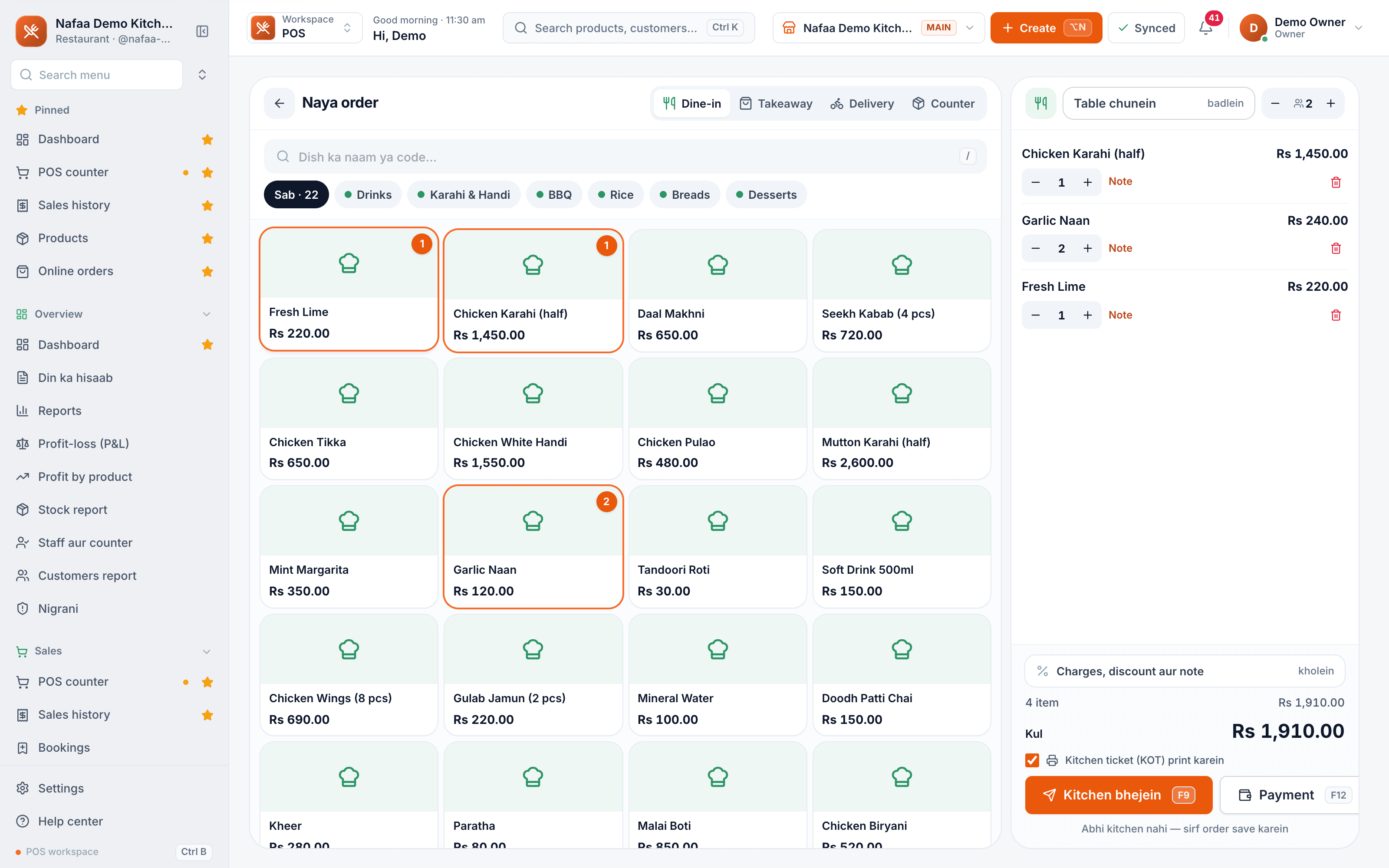
- Dine-in, Takeaway, Delivery, Counter
- Table and guests
- Order lines with Note
- Kitchen bhejein (F9)
- Payment (F12)
Questions
Can the kitchen use a screen instead of printed KOTs?
Yes. Kitchen (KOT) is a kitchen screen with three lanes: Naye, Ban rahe (cooking) and Tayyar. It beeps when a new ticket arrives (Awaaz on/off, key M). Tickets can be printed from the same screen, and if you use kitchen stations each station can filter its own tickets with keys 1 to 9.
How do I add a service charge on dine-in bills?
Set the shop’s service charge in Settings → Counter rules. On a dine-in order you can change it for that order only under Charges, discount aur note.
What happens if a dish is cancelled after the KOT went out?
The kitchen screen shows a red CANCEL ticket so the cooks stop making it. It clears itself after 30 minutes.
Related
- Industry
Restaurant
Nafaa runs dine-in, takeaway and delivery for restaurants and cafes: a table layout, kitchen order tickets (KOT) sent to each station's printer or screen, add-ons on dishes, recipes, riders for delivery, happy-hour prices, and bills paid by cash, card, wallet, split or khata. - Solution
Restaurants
Nafaa for restaurants and cafés runs dine-in, takeaway and delivery from one system: a table layout with running bills, kitchen order tickets sent to each station, a menu with add-ons, happy hours and recipes that cost every plate, riders with their cash, and Foodpanda orders. - Product
POS
Nafaa POS is the billing counter for any business: scan a barcode or tap a quick key, sell by piece, dozen or carton, take cash, card, JazzCash, Easypaisa or khata in one bill, print or WhatsApp the receipt, and keep billing when the internet drops. It runs on the phone, tablet or computer you already have. - Page
Take a split payment
Take one bill in two or more ways, such as part cash and part card or JazzCash. Open checkout, switch on Split payment, enter each amount, and Nafaa records every method on the bill and gives change only from cash. - Page
Set up receipts and a receipt printer
Connect a thermal receipt printer by USB, serial or Bluetooth, print a test bill, set 80 mm or 58 mm paper, choose what the receipt shows, and open the cash drawer automatically on cash sales. - Page
How to make a bill at the POS counter
Open the POS counter, add items by barcode, name or tile, set quantities, pick the customer and take payment. Covers the one-key cash bill (F12), the checkout window for other payment methods, and what to do on the success screen.
Terms used here
KOT (Kitchen Order Ticket)
A KOT is the ticket, printed or on a screen, that tells the kitchen what to cook for an order.Kitchen Display System (KDS)
A kitchen display system is a screen in the kitchen that shows incoming orders in place of printed tickets, and lets cooks mark dishes as cooking and ready.Split Bill
Splitting a bill means dividing one table's order into separate bills, by item or by equal shares, so each guest pays their own part.Service Charge
A service charge is a percentage or fixed amount a restaurant or service business adds to the bill for service, separate from the price of food and from tax.Table Turnover
Table turnover is how many times a restaurant table is used by new guests during a meal period or a day.
Know your food cost per dish
Link recipes to stock and see the cost and margin of every item on your menu. Try it free for 7 days.