Help center
How to add staff and give them a login
Add each person who works for you, then give a login to those who use the app. Pick a role (Manager, Cashier or Staff), lock the login to one branch if needed, adjust permissions, and print the login slip with the first password.
Updated
Every person on the payroll can have a record in Nafaa, with or without a login. Helpers and drivers usually only need the record, for salary and attendance. Anyone who bills at the counter, receives stock or reads reports needs their own login, so each sale and change is recorded under their name.
Only the owner can create logins. Open Staff → All staff in the sidebar (also under Settings → Users → People).
Add a staff member with a login
Step 1: Start a new record
On the Staff page click Naya banda (new person), or press N.
Step 2: Fill in the basics
Enter Poora naam (full name) and Phone. Under Kaam, add the Kaam (designation), for example Cashier, and the Joining date. Set the salary type and amount if you will run payroll in Nafaa.
Step 3: Turn on the login
In the App ka login card switch on Is bande ko login dein (give this person a login).
Step 4: Set email and password
Enter a Login email that belongs to this person only and a Pehla password of at least 8 characters. The refresh icon creates a password for you.
Step 5: Choose the role
Pick Manager (runs the branch: sales, stock, expenses, reports), Cashier (sales at the counter, cash drawer and customers) or Staff (stock work, no counter). The role fills in its default permissions.
Step 6: Pick the branch
Keep Sab branches (all branches) or choose one branch. A login locked to a branch only sees and sells in that branch.
Step 7: Check permissions and save
Open Permissions to add or remove single permissions, then click Banda aur login banayein (or Ctrl + Enter). Print the login slip that appears: the password is shown only once.
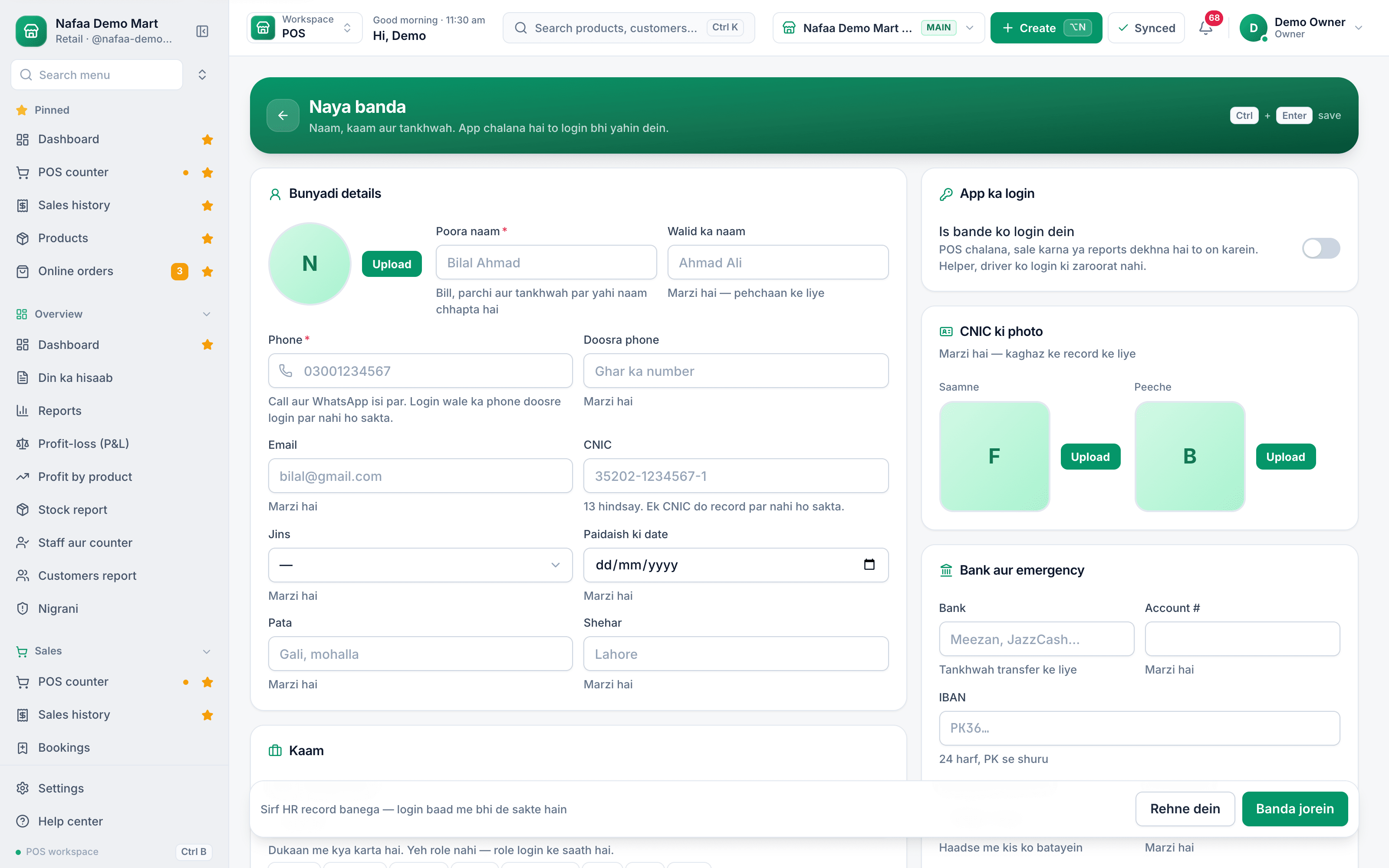
- Full name and phone
- Give a login
- Save
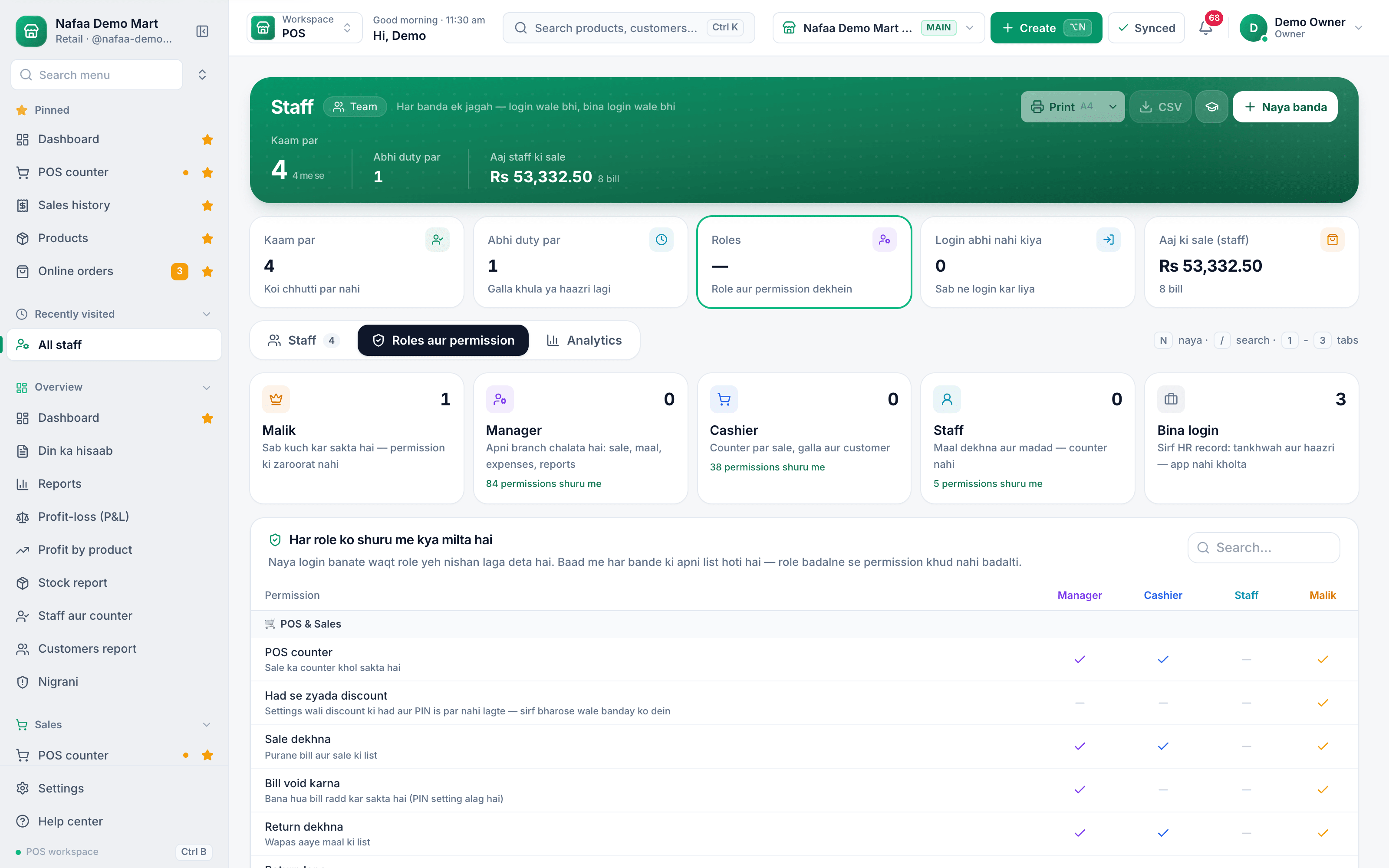
- Switch to the roles tab
- Default permissions per role
Questions
A staff member forgot the password. How do I reset it?
Open their profile from the Staff page and click Naya password. The old password stops working straight away and they are logged out of every device. Print the new slip or send it on WhatsApp.
Can a cashier see my cost and profit?
Only if their permissions allow it. Setting an owner PIN in Settings → Users → Security & PIN also hides cost and profit from anyone who does not know the PIN.
Do helpers need a login for attendance and salary?
No. Leave the login switched off. The record still works for attendance and payroll.
Related
- Product
Staff
Nafaa Staff gives every team member a login and a role, sets counter rules like the refund PIN, tracks attendance and leave, works out sales commission, runs payroll with advances and payslips, and logs every sensitive action with a name, so the owner can trust the counter without standing behind it. - Page
How to create your Nafaa account
Sign up for Nafaa in two short parts: name your business and pick its type, then add your name, email and password. Verify the email with a 6-digit code and the 7-day free trial starts, with no card needed. - Page
Devices, login and counter hardware
Nafaa runs in the browser on a computer, tablet or phone. Learn how to log in and keep a device remembered, connect a receipt printer, cash drawer, barcode scanner, scale or customer screen on each counter, and log out a lost device. - Page
Process a return and the refund PIN
Take goods back on an earlier bill, choose what goes back on the shelf and what is written off, refund in cash, wallet, bank or card, and understand when the owner’s PIN is asked for. The refund PIN is on by default. - Page
How to add a branch, warehouse or godown
Add a second shop, a warehouse or a godown to the same Nafaa account, give it a manager login, and switch between branches from the top bar. Every branch keeps its own stock, cash drawer and sales, and reports can combine all of them. Blog post
How to Hire and Train Counter Staff for Your Shop
Hire a cashier for honesty, numbers and patience, test them on a paid trial day, and train them for a week with a written plan before they run the counter alone. Give each person their own login and role, keep voids and refunds behind the owner's PIN, and review their numbers every month.
Terms used here
Galla
A galla is the cash box or drawer at a shop counter where the day's cash sales are kept and change is given from.Void (Bill Void)
To void a bill is to cancel a completed sale so it no longer counts, while keeping a record that it existed and who cancelled it.Refund
A refund is money paid back to a customer for a returned item or a cancelled order.
Give each staff member only the access they need
Roles, permissions, PIN-protected refunds and sales by staff member. Start a 7-day free trial.