Help center
How to make a bill at the POS counter
Open the POS counter, add items by barcode, name or tile, set quantities, pick the customer and take payment. Covers the one-key cash bill (F12), the checkout window for other payment methods, and what to do on the success screen.
Updated
Every sale in Nafaa starts on the POS counter (sidebar → Sales → POS counter, or press G then P from anywhere in the app). The screen has a search box on the left with your products under it, and the Bill on the right.
The search box is always ready for the barcode gun, so on a busy counter you can scan item after item without touching the mouse. You can also type a name, an SKU or the Urdu name of a product, or click its tile.
Make a bill
Step 1: Open the counter
Go to POS counter. If your account has more than one branch, check that the right shop is selected in the top bar; the bill cannot be completed without one.
Step 2: Add the items
Scan the barcode, or type part of the name and press Enter to add the first match. Use ↑ and ↓ to pick another result. Clicking a product tile adds it too.
Step 3: Set quantities
Type
3*and press Enter to make the last line 3, or type3*before a name or barcode to add that item three times. + and − change the last line by one.Step 4: Pick the customer (optional)
The bill starts as Walk-in customer. Press F2 to search a customer by name or phone, or type a mobile number in the search box and press Enter. A customer is needed for udhaar.
Step 5: Take cash in one key
For a cash sale of the exact amount, press F12 or click Cash · print. The bill is saved and printed if auto-print is on.
Step 6: Use checkout for anything else
Press Ctrl + Enter (or the Checkout button) to choose Pura paisa (paid in full), Kuch paisa (part paid, rest udhaar) or Udhaar, pick Cash, JazzCash, Easypaisa, Card or Bank, and type what the customer handed over. Nafaa shows the change. Press Enter to complete.
Step 7: Finish
The Sale ho gayi screen shows the total. Press P to print again, W to send the bill on WhatsApp when the customer has a phone number, or Enter for Nayi sale (next sale).
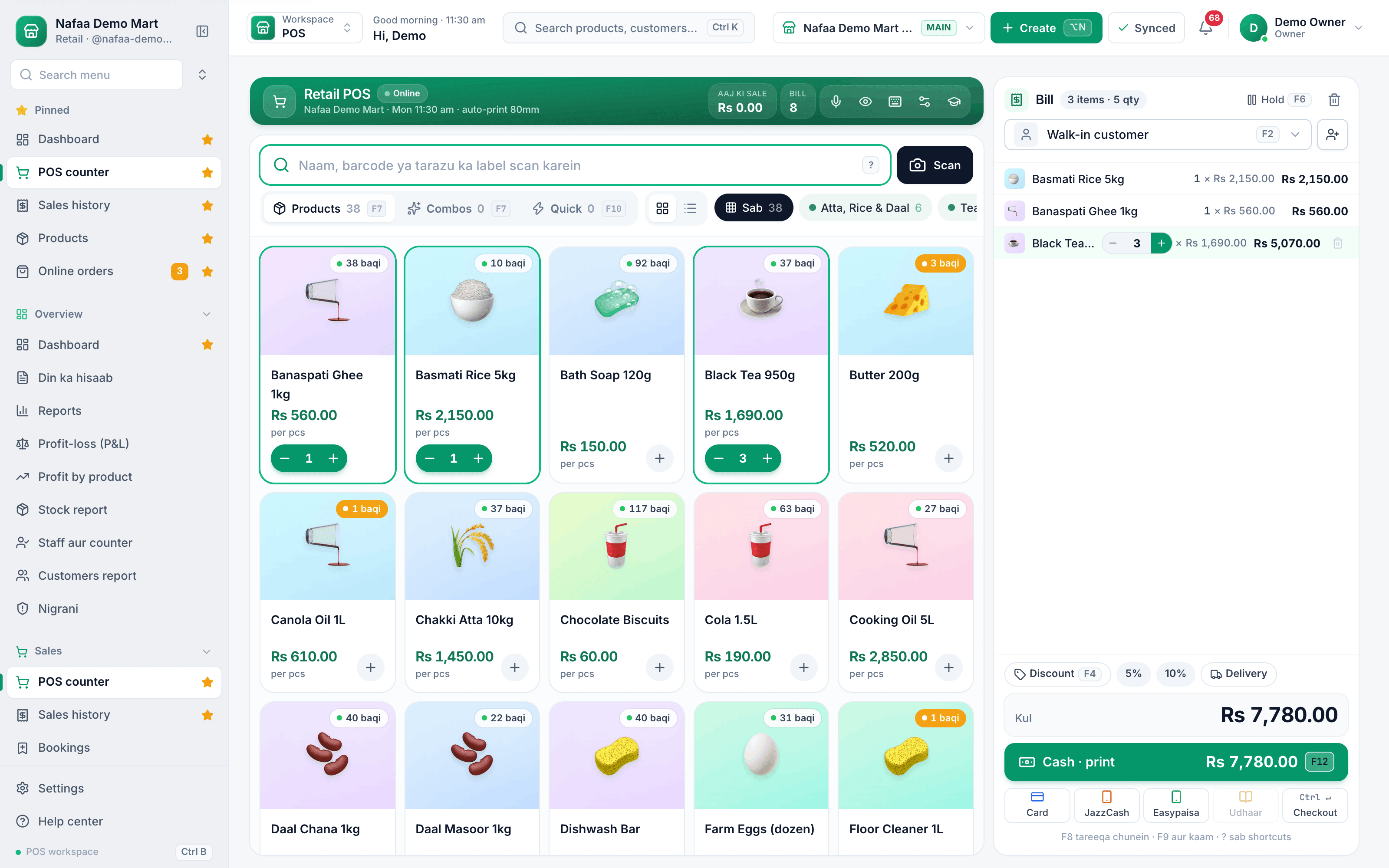
- Scan or type here
- Click a tile to add it
- Bill lines
- Customer (F2)
- Cash · print (F12)
- Checkout (Ctrl + Enter)
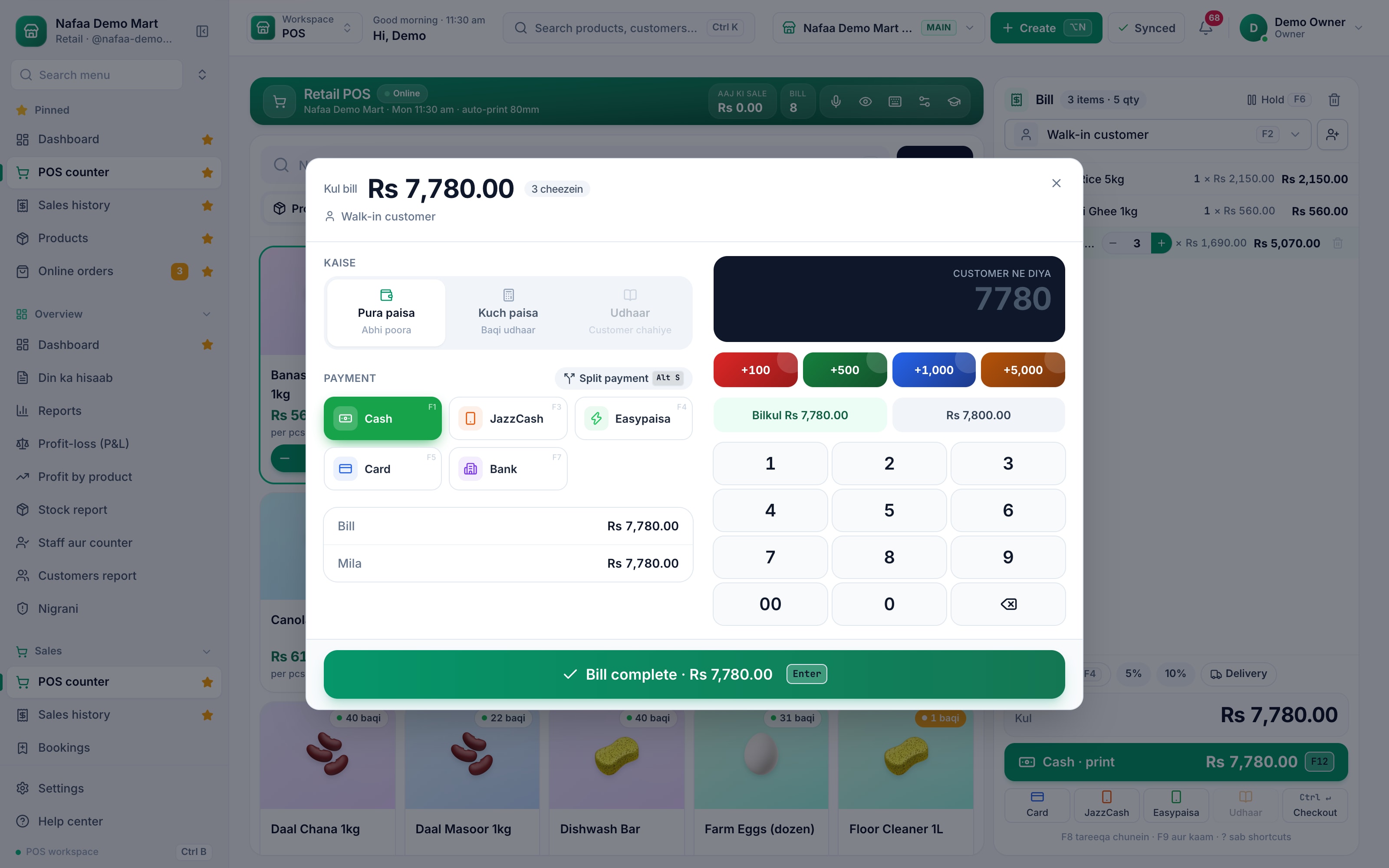
- Full, part or udhaar
- Payment method
- Amount received
- Complete (Enter)
Questions
Can I change the rate of one item on the bill?
Yes, if your role allows it. Press F3 to move into the bill lines, select the line and press R. A lower rate counts toward the shop’s discount limit set in Counter rules.
How do I remove an item from the bill?
Press F3, select the line with ↑ or ↓ and press Delete, or press − until the quantity reaches zero.
Related
- Product
POS
Nafaa POS is the billing counter for any business: scan a barcode or tap a quick key, sell by piece, dozen or carton, take cash, card, JazzCash, Easypaisa or khata in one bill, print or WhatsApp the receipt, and keep billing when the internet drops. It runs on the phone, tablet or computer you already have. - Page
POS keyboard shortcuts
Every key on the Nafaa POS counter: search and quantity, the bill lines, customer, discount, hold, payment and checkout. Press ? on the counter to see the same list on screen. - Page
Take a split payment
Take one bill in two or more ways, such as part cash and part card or JazzCash. Open checkout, switch on Split payment, enter each amount, and Nafaa records every method on the bill and gives change only from cash. - Page
How to sell on udhaar (credit)
Make a credit sale at the Nafaa POS counter: pick the customer, then put the whole bill or the unpaid part in their khata. The customer’s old balance shows on the bill, and the credit limit is checked before the bill is saved. - Page
Set up receipts and a receipt printer
Connect a thermal receipt printer by USB, serial or Bluetooth, print a test bill, set 80 mm or 58 mm paper, choose what the receipt shows, and open the cash drawer automatically on cash sales. - Page
Choose a POS counter layout
Pick one of four counter layouts (Classic, Express, Bill bara and Touch) for the whole shop or for one cashier, choose how dense the bill lines are, and switch parts of the counter on or off.
Terms used here
POS (Point of Sale)
The point of sale is where a sale is completed: items are scanned or picked, payment is taken and a receipt is given.Barcode
A barcode is a machine-readable pattern of bars or squares printed on a product or label that a scanner reads to identify the item.Receipt
A receipt is the slip given to a customer as proof of payment, listing what was bought, the prices, any discount, the total and how it was paid.
Billing software for a Pakistani counter
Discounts, returns with a PIN, hold and recall, and printed receipts in one screen. Start a 7-day free trial.