Help center
Salon: book appointments and walk-ins
Book a client for a service with a stylist at a set time, take an advance, see each stylist’s day on the calendar, check clients in when they arrive and turn the finished appointment into a bill at the salon counter, with the stylist’s commission worked out.
Updated
A salon account has an Appointments screen for the day’s bookings and walk-in queue, and a Calendar with one column per stylist. Both are in the sidebar. An appointment moves from Booked to Aa gaye (arrived), Chair par (in the chair) and Ho gaya (done), and then becomes a bill at the Salon counter.
Book an appointment and bill it
Step 1: Start a booking
On Appointments press Booking (or N). Choose Booking (baad ka waqt) for a later time, or Walk-in (abhi aaye) for a client who is already here (W from the list).
Step 2: Pick the client
Search by name or phone under Customer dhoondein, or type a new name and phone. Choosing a saved client keeps their history and khata together.
Step 3: Add services and stylist
Under Services aur stylist, choose the service and the stylist, or leave the stylist for later. Leave Rate empty to use the list rate. Aur service adds another service.
Step 4: Set the time
Pick the Date and Waqt. Nafaa lists the stylist’s other bookings that day under Is din stylist ki bookings, so you can avoid a clash.
Step 5: Take an advance (optional)
Enter Advance amount. It is credited to the client’s khata and taken off the bill automatically. Press Booking pakki karein.
Step 6: Check in and bill
When the client arrives, open the appointment and press Customer aa gaye, then Chair par — kaam shuru. When the work is done, press Kaam ho gaya — bill banayein: the salon counter opens with the services, and the stylist’s commission is worked out on the bill.
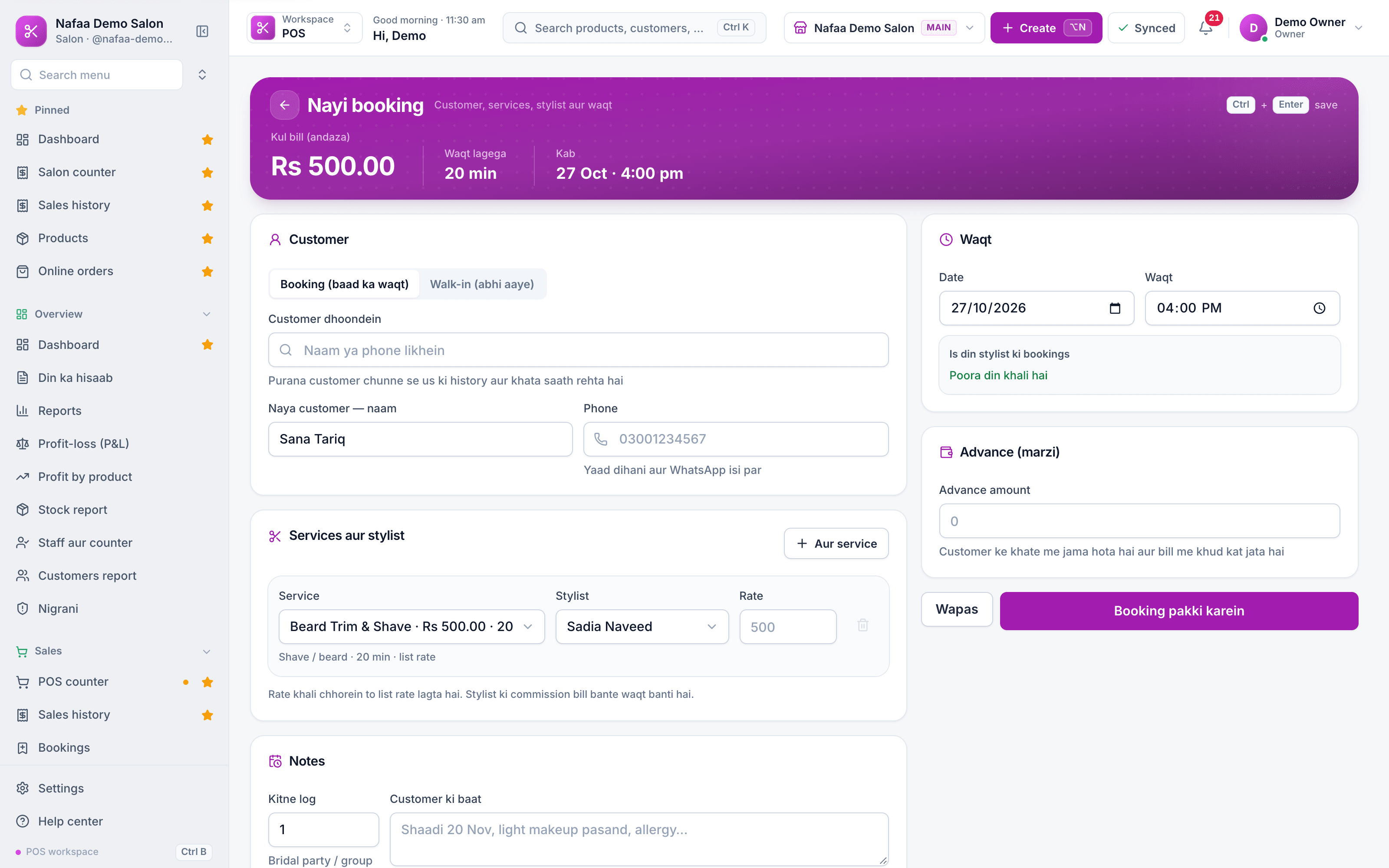
- Booking or walk-in
- Find or add the client
- Service and stylist
- Date and time
- Stylist’s other bookings that day
- Booking pakki karein
Questions
Can a booking have more than one service and stylist?
Yes. Add each service with Aur service and choose a stylist for each line. Kitne log records a group, such as a bridal party.
Where do I see stylist commission?
Under Stylist aur commission, which shows each stylist’s commission from billed services and lets you record a payout.
Related
- Industry
Salon
Nafaa runs salons and beauty parlours: book appointments on a calendar, keep a service list with prices, pay stylists commission per service, sell memberships, prepaid packages and gift vouchers, keep customer profiles, and bill services and products together at the salon counter. - Product
POS
Nafaa POS is the billing counter for any business: scan a barcode or tap a quick key, sell by piece, dozen or carton, take cash, card, JazzCash, Easypaisa or khata in one bill, print or WhatsApp the receipt, and keep billing when the internet drops. It runs on the phone, tablet or computer you already have. - Product
Staff
Nafaa Staff gives every team member a login and a role, sets counter rules like the refund PIN, tracks attendance and leave, works out sales commission, runs payroll with advances and payslips, and logs every sensitive action with a name, so the owner can trust the counter without standing behind it. - Page
How to make a bill at the POS counter
Open the POS counter, add items by barcode, name or tile, set quantities, pick the customer and take payment. Covers the one-key cash bill (F12), the checkout window for other payment methods, and what to do on the success screen. - Page
How to send udhaar reminders on WhatsApp
Remind customers about their udhaar on WhatsApp from the Khata page. Nafaa writes the message with the name, amount and days due, picks a polite, firm or final tone by age, and opens WhatsApp so you only press Send. - Page
How to add a customer
Add a customer in Nafaa from the Customers page or straight from the POS counter. Only the name is required; a phone number lets you send bills and udhaar reminders on WhatsApp. This article covers the quick add, the full form and the counter shortcut.
Try Nafaa POS on your own products
Add a few items and make a test bill in minutes. The free trial runs for 7 days.