Help center
How to edit many products at once
Change names, categories, prices, costs, barcodes, low stock levels and stock for many products in one spreadsheet. Only changed cells are saved, you see every change before saving, and stock changes are recorded as adjustments.
Updated
When the supplier raises rates or you reorganise categories, changing products one at a time takes hours. Bulk edit shows your products in a spreadsheet grid where you can type over cells, paste from Excel, or change a whole column at once.
Open Products and press the bulk edit button (the list icon next to Bulk banayein), or press Bulk edit on the Excel import page. You need permission to edit products; changing stock also needs the stock adjustment permission.
Edit products in the grid
Step 1: Filter the list
Choose a Category, an earlier Import, or tick Sirf low stock (low stock only). Use Dhoondein to search by name, SKU or barcode.
Step 2: Pick the stock branch
If you will change stock, choose the branch under Stock kis branch ka. The stock column shows that branch’s quantity.
Step 3: Change cells
Click a cell and type, or paste a block copied from Excel with Ctrl + V. Changed cells turn yellow; cells with a problem turn red with the reason below.
Step 4: Change a column at once
Use Column ek saath to apply one change to a whole column, or Dhoondein / badlein to find and replace text.
Step 5: Undo if needed
Ctrl + Z undoes the last change. Sab wapas clears every change you have not saved.
Step 6: Review and save
Press Dekh kar save karein. Nafaa lists each change as old value and new value. Confirm to save.
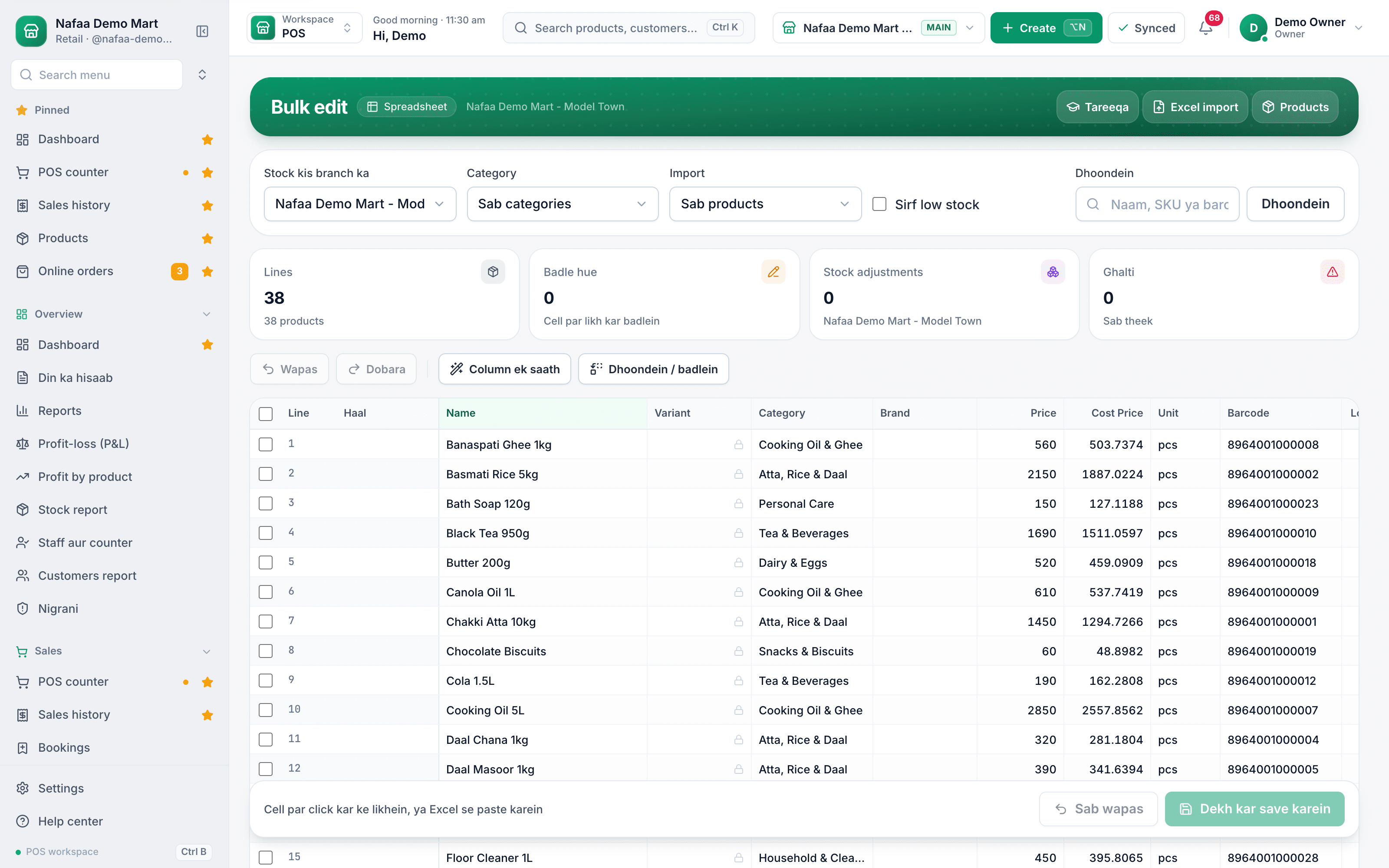
- Branch for stock
- Low stock only
- Change a whole column
- Type over a cell
- Review, then save
Questions
Can I change prices only, from a file?
Yes. On the import page choose Price update, download your current Price list, change the Price or Cost Price column and upload it back.
Who can change stock in bulk edit?
Only users whose role allows stock adjustments. For others the stock column is closed.
Related
- Product
Inventory
Nafaa Inventory keeps stock right in every unit and every branch: products with cost, price and margin, barcodes and labels, combos, low-stock alerts, damage and adjustments with reasons, stock transfers between branches, and a full movement history. Import from Excel or paste from a spreadsheet, and change many prices at once in the bulk editor. - Page
How to import products from Excel
Bring your whole product list into Nafaa from an Excel or CSV file, or paste cells straight from Excel or Google Sheets. Columns are matched for you, every line is checked in a grid before anything is saved, and existing products can get new stock or prices. - Page
How to adjust stock and record damage
Correct stock by hand when it does not match the shelf: add stock, remove it, or record damaged and lost goods with a reason. Use a stock count to enter what you actually counted and let Nafaa post the difference. - Page
How to add staff and give them a login
Add each person who works for you, then give a login to those who use the app. Pick a role (Manager, Cashier or Staff), lock the login to one branch if needed, adjust permissions, and print the login slip with the first password.
Terms used here
Stock Adjustment
A stock adjustment is a manual correction to a product's stock quantity, with a reason, when the system figure does not match reality.SKU (Stock Keeping Unit)
An SKU is a code for one exact product variant in stock, so each size, colour or pack size is counted separately.Reorder Level
A reorder level is the stock quantity at which a new order should be placed, so stock arrives before the shelf runs empty.
Put your product list and stock in one place
Import products from a sheet, print barcode labels and watch stock value at cost. 7-day free trial.