Help center
How to bill by voice and read AI insights
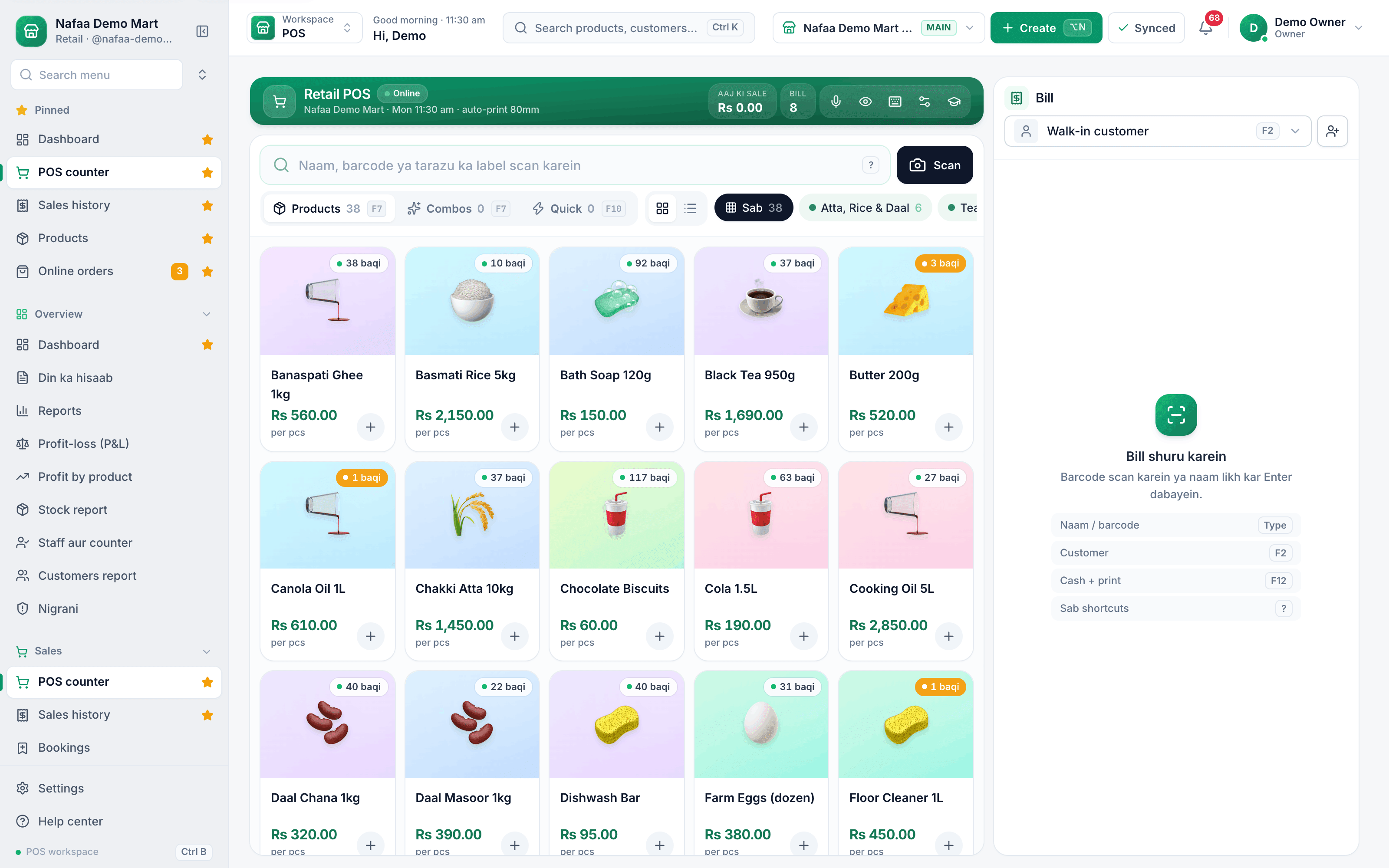
Speak the bill at the counter in Urdu or Roman Urdu and Nafaa adds the items, quantities and Discount for you. For online selling, the AI insights page lists products that will run out soon, price suggestions and products to recommend to customers.
Updated
Two parts of Nafaa listen and suggest for you. At the counter, Awaaz se bill (bill by voice) turns spoken phrases like "2 kilo cheeni" into bill lines. In the marketplace workspace, AI insights reads your online sales and suggests what to reorder and how to price.
Voice billing uses the browser's speech recognition, so it needs Google Chrome or Microsoft Edge and permission to use the microphone.
Make a bill by voice
Step 1: Open the counter
Go to POS counter in the sidebar.
Step 2: Start the microphone
Click the mic icon in the green bar at the top of the counter. The Awaaz se bill panel opens and starts listening. Allow the microphone if the browser asks.
Step 3: Pick the language
Under Zabaan choose اردو / Urdu or English / Roman. Nafaa remembers your choice on this device.
Step 4: Speak the items
Say one item at a time or join several with "aur", for example "2 kilo cheeni", "sau ka doodh" or "ek dozen anday aur ek bread". Each line you say appears in the panel and is added to the bill.
Step 5: Add a Discount or finish
Say "5 percent discount" for a Discount, or "nagad" to go to checkout with cash. Say "udhaar" for a credit sale.
Step 6: Close the panel
Click Ho gaya and check the bill before you complete it.
- Bill by voice
- Or scan and search as usual
- Customer for udhaar (F2)
Questions
Which browsers support voice billing?
Google Chrome and Microsoft Edge. In other browsers the panel says the voice feature is not available.
Does voice billing work in Urdu script?
Yes. It understands Urdu numbers and units such as "ڈیڑھ کلو" as well as Roman Urdu like "dedh kilo".
Related
- Product
AI assistant
The Nafaa AI business assistant answers questions about your own sales, stock and khata in plain English or Roman Urdu. Ask in your own words and get a short answer from your Nafaa data, with the numbers behind it. It only reads the business data your account is allowed to see. - Page
How to make a bill at the POS counter
Open the POS counter, add items by barcode, name or tile, set quantities, pick the customer and take payment. Covers the one-key cash bill (F12), the checkout window for other payment methods, and what to do on the success screen. - Page
How to set low stock alerts and reorder
Set a low stock level on each product and see what is out, low, running out soon or near expiry in every branch. Nafaa works out how many days the stock will last and turns the list into purchase orders or a WhatsApp message to the supplier. - Page
POS keyboard shortcuts
Every key on the Nafaa POS counter: search and quantity, the bill lines, customer, discount, hold, payment and checkout. Press ? on the counter to see the same list on screen. - Product
POS
Nafaa POS is the billing counter for any business: scan a barcode or tap a quick key, sell by piece, dozen or carton, take cash, card, JazzCash, Easypaisa or khata in one bill, print or WhatsApp the receipt, and keep billing when the internet drops. It runs on the phone, tablet or computer you already have. Blog post
Meet the Nafaa AI Assistant: Ask in Plain Words
The Nafaa AI assistant answers questions about your own sales, stock and khata in English or Roman Urdu. This post shows what you can ask, how it handles Roman Urdu, and what it never does on its own.
Ask Nafaa AI about your own shop numbers
Ask about sales, stock and customers in plain words and get answers from your data. Try it in the 7-day free trial.