Help center
How to add a branch, warehouse or godown
Add a second shop, a warehouse or a godown to the same Nafaa account, give it a manager login, and switch between branches from the top bar. Every branch keeps its own stock, cash drawer and sales, and reports can combine all of them.
Updated
A branch in Nafaa is any place that holds stock. A Dukaan (shop) has the POS counter, customers and a cash drawer. A Warehouse or Godown only stores stock and sends it on. Each branch has its own stock and sales, and the owner can look at one branch or all of them together.
Branches live in Settings → Business info → Branches. How many you can add depends on your plan; the plan usage page lists Branches next to products and users.
Add a branch
Step 1: Open Branches
Go to Settings → Business info → Branches and click Nayi branch (new branch), or press N on that page.
Step 2: Choose the type
Under Branch ki type pick Dukaan, Warehouse or Godown. The type decides what runs there: only a Dukaan has the POS and the drawer.
Step 3: Name it
Enter Branch ka naam, for example "Ali Store - Saddar". Add the phone and Pata (address) if you want them on that branch's bills.
Step 4: Add a manager (optional)
Switch on Is branch ka manager banayein and fill in the manager's name, login email and password. The manager will only see this branch.
Step 5: Create the branch
Click Branch banayein (or Branch aur login banayein when you added a manager). A new branch starts with empty stock.
Step 6: Send stock to it
Move stock from an existing branch with Inventory → Transfers. See stock transfers.
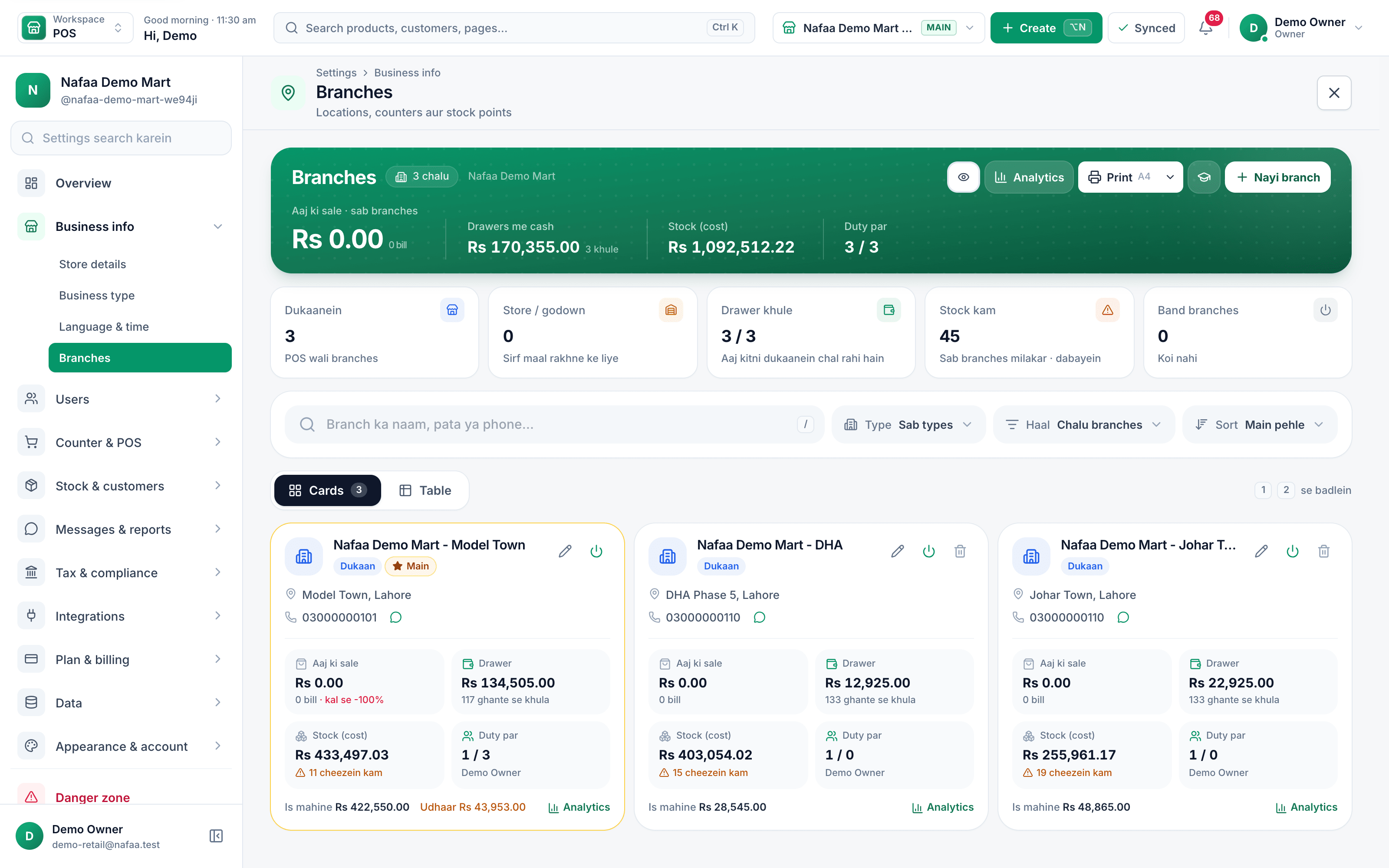
- Add a new branch
- Main branch
- Compare branches
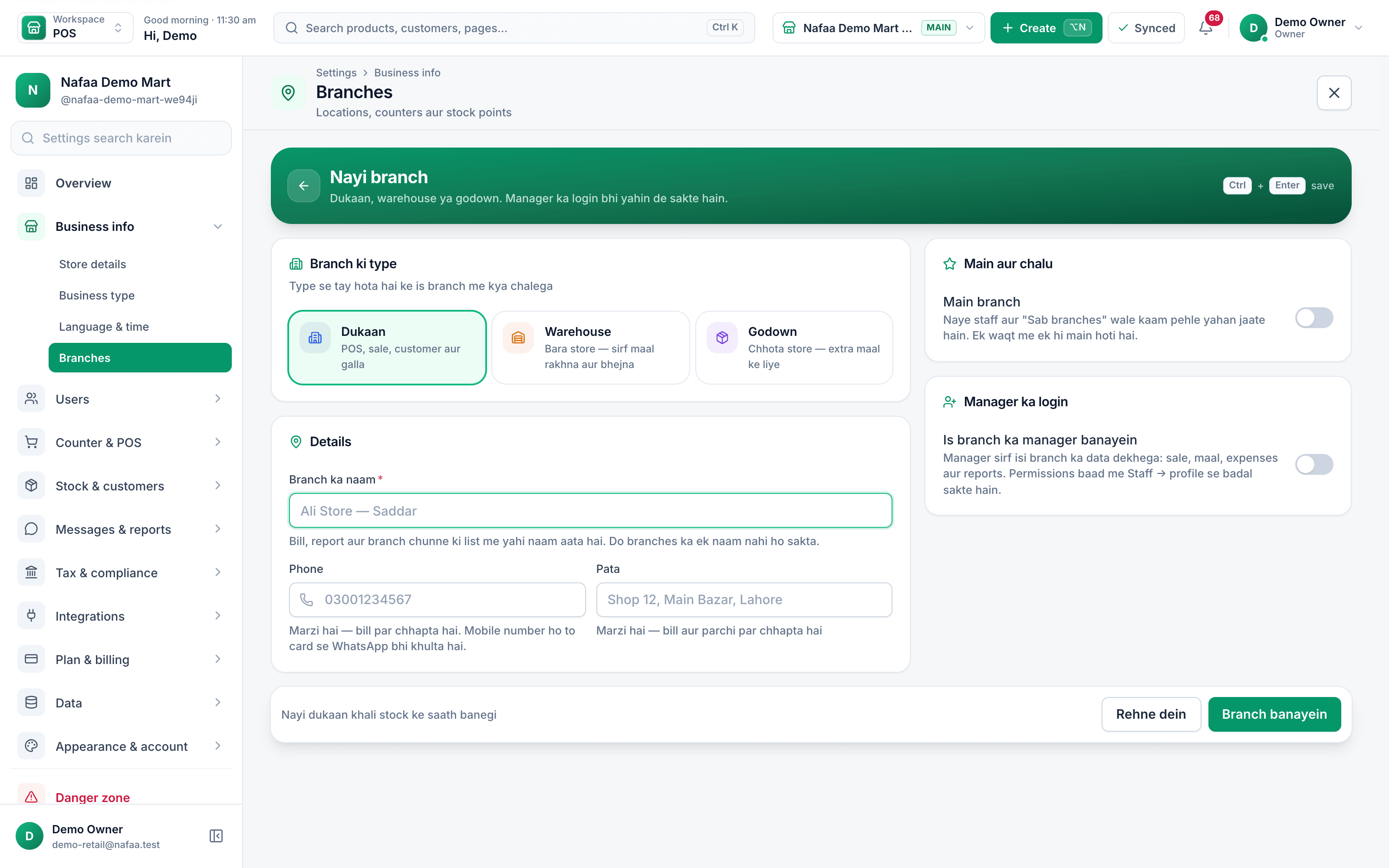
- Shop, warehouse or godown
- Branch name
- Manager login
Questions
Can a cashier see sales from other branches?
No, if their login is locked to one branch. A login with one branch only sees and sells in that branch.
How do I compare branches?
Click Analytics on the Branches page to open Branch analytics, which shows sales, returns, expenses and bills per branch for the period you pick.
Related
- Product
Multi-branch
Nafaa Multi-Branch runs every shop, warehouse or godown from one account: each branch keeps its own counter, stock and cash, head office compares sales and profit side by side, stock moves between branches with transfers that the other side receives, and each staff member works in the branch they are assigned to. - Page
How to transfer stock between branches
Send stock from one branch to another and receive it at the other end. Stock leaves the sending branch when you send, joins the receiving branch when it is received, and short deliveries are recorded with a note. - Page
How to add staff and give them a login
Add each person who works for you, then give a login to those who use the app. Pick a role (Manager, Cashier or Staff), lock the login to one branch if needed, adjust permissions, and print the login slip with the first password. - Page
How to read the daily sales report
Din ka hisaab is Nafaa’s day report: net sale, money received, profit, the galla, discounts, returns, udhaar and expenses for one day, with tabs for items, staff and checks. Learn how to open any day, read it and share or print it. - Solution
Retail chains
Nafaa for retail chains runs every branch from one account: each branch has its own counter, stock and cash, head office compares sales and profit across branches, stock moves by transfer with a check on arrival, staff only reach their own branches, and every refund and discount is on the record. Blog post
Opening a Second Branch: Checks, Costs and the First 90 Days
Open a second branch only when the first shop runs well without you at the counter, you have cash for several months of slow sales, and you have someone you trust to run it. This guide covers the readiness checks, choosing a location, a simple break-even estimate, staff, opening stock, prices and the first 90 days.
Terms used here
Multi-Branch Management
Multi-branch management is running several shops or outlets from one system, with each branch's stock, cash and sales kept separately and seen together.Stock Transfer
A stock transfer moves goods from one branch, store or warehouse of the same business to another, reducing stock at one place and adding it at the other.
See every branch from one login
Compare sale and stock across branches, transfer stock and set who can see what. 7-day free trial.