Help center
Choose a POS counter layout
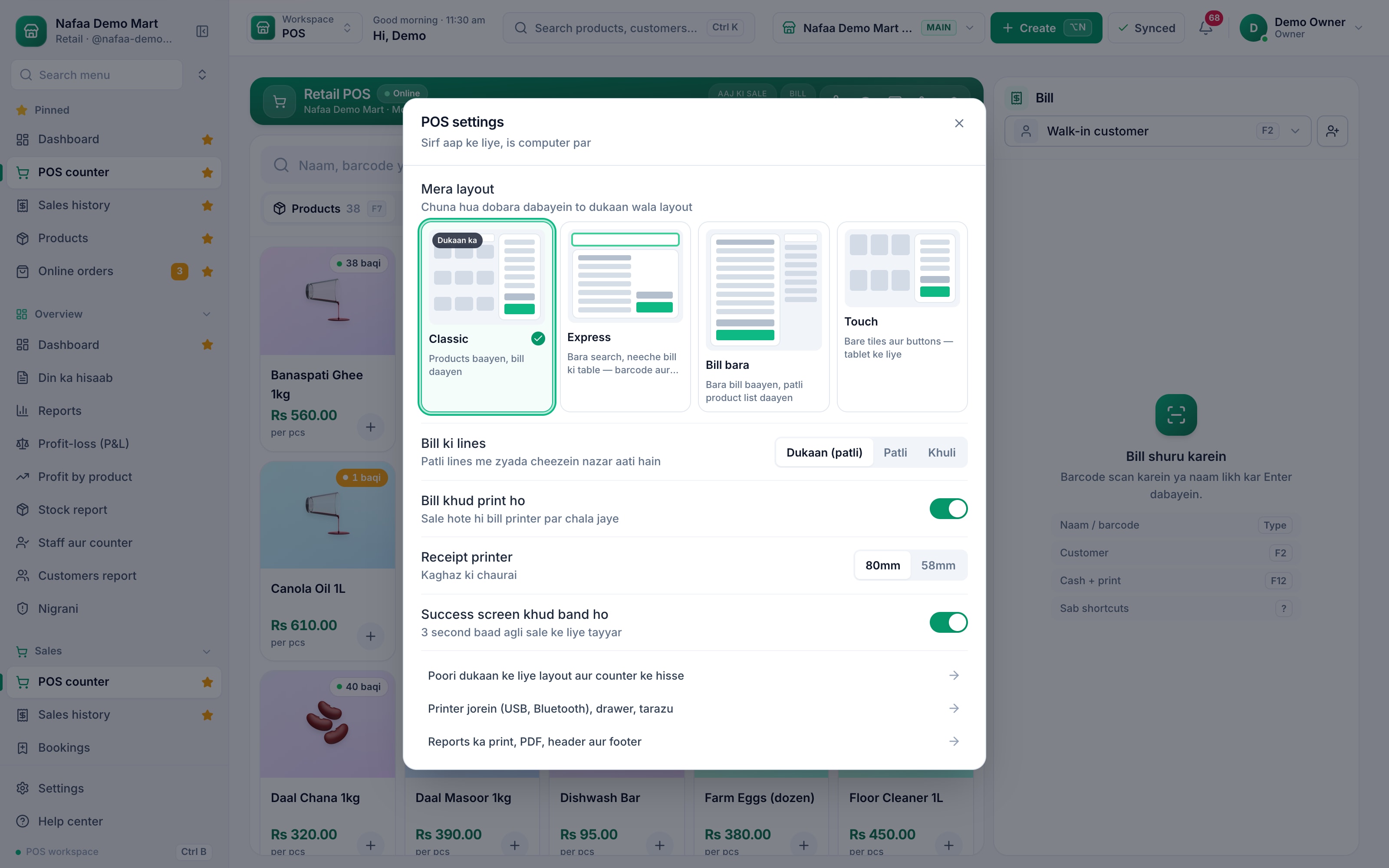
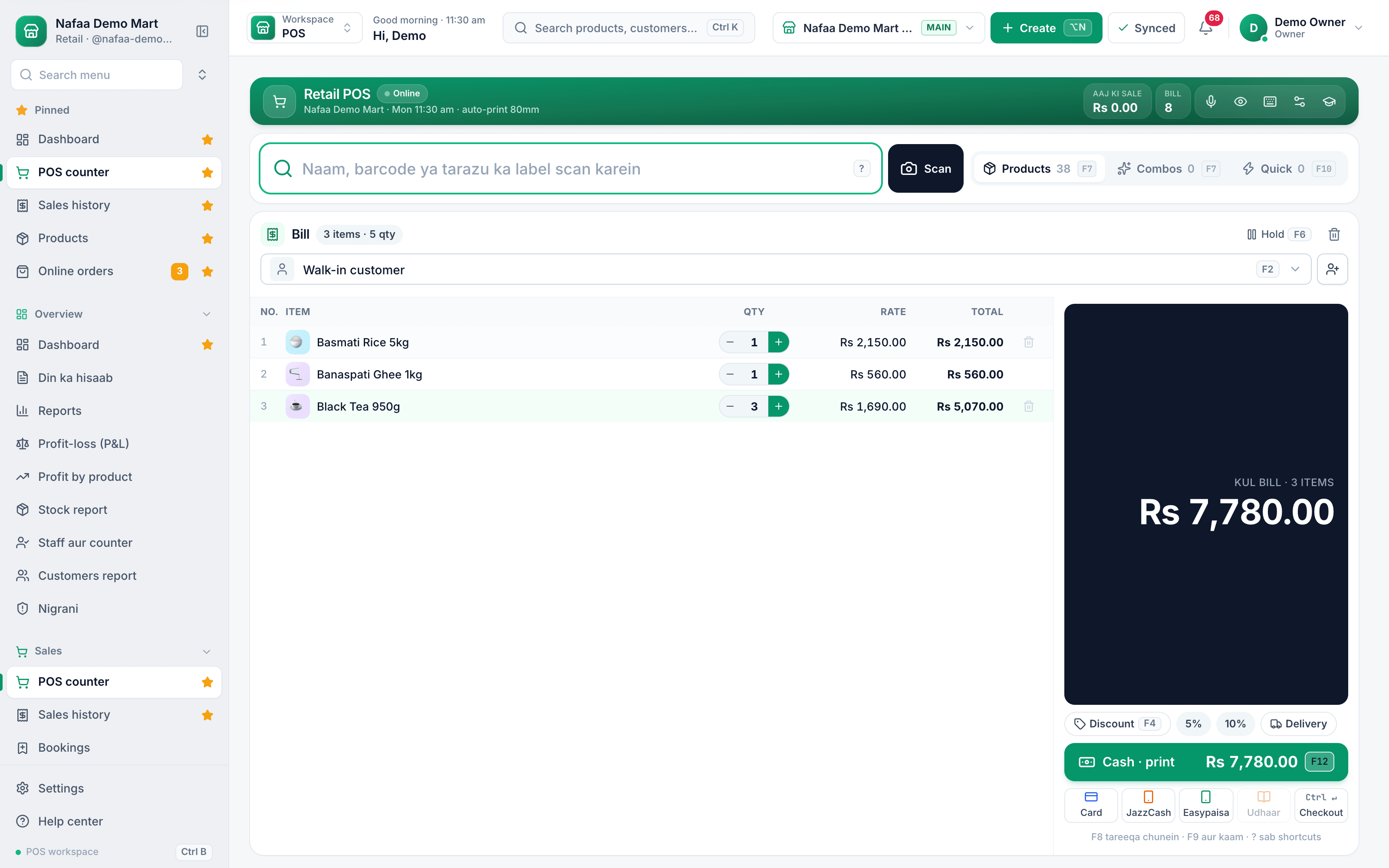
Pick one of four counter layouts (Classic, Express, Bill bara and Touch) for the whole shop or for one cashier, choose how dense the bill lines are, and switch parts of the counter on or off.
Updated
The same counter can look different for different work. A grocery till with a barcode gun wants a big search box and a bill table; a café on a tablet wants big tiles. Nafaa has four layouts on one engine, so prices, stock and keys work the same in each.
| Layout | Best for |
|---|---|
| Classic | Products on the left, bill on the right. The default. |
| Express | A big search with the bill as a table below. Barcode and keyboard counters. |
| Bill bara (big bill) | A large bill on the left and a narrow product list on the right. |
| Touch | Big tiles and buttons for tablets. |
The owner sets the shop default. Each cashier can then pick their own layout on their own computer. Phones always use Classic.
Change the layout
Step 1: For yourself, on this computer
On the POS counter click the settings icon in the green bar (POS settings). Under Mera layout (my layout) pick one. Click the chosen one again to go back to the shop layout.
Step 2: Set line density
In the same window, Bill ki lines sets Patli (compact) or Khuli (roomy) lines. Compact shows more items on a small screen.
Step 3: For the whole shop
Go to Settings → Counter & POS → Counter rules. In the POS counter card choose the Dukaan ka layout (shop layout). Every counter opens with it until a cashier picks their own.
Step 4: Choose what the counter shows
Under Counter par kya dikhe switch parts on or off: product pictures, the category strip, quick keys, stock on tiles, the Discount button, line notes, delivery, sounds and auto-print.
Step 5: Set quick discount buttons
Jaldi Discount buttons adds one-click discounts (for example 5% and 10%) to the bill. Cashiers only see buttons within their own limit.
- Mera layout
- Line density
- Auto-print and paper width
- Shop-wide settings
Questions
Where is a cashier’s own layout saved?
In that browser on that computer. A cashier who works on two counters picks the layout on each one.
Who can change the shop layout?
Staff whose role can edit settings. The link to the shop settings shows in POS settings only for them.
Related
- Product
POS
Nafaa POS is the billing counter for any business: scan a barcode or tap a quick key, sell by piece, dozen or carton, take cash, card, JazzCash, Easypaisa or khata in one bill, print or WhatsApp the receipt, and keep billing when the internet drops. It runs on the phone, tablet or computer you already have. - Page
POS keyboard shortcuts
Every key on the Nafaa POS counter: search and quantity, the bill lines, customer, discount, hold, payment and checkout. Press ? on the counter to see the same list on screen. - Page
How to make a bill at the POS counter
Open the POS counter, add items by barcode, name or tile, set quantities, pick the customer and take payment. Covers the one-key cash bill (F12), the checkout window for other payment methods, and what to do on the success screen. - Page
Devices, login and counter hardware
Nafaa runs in the browser on a computer, tablet or phone. Learn how to log in and keep a device remembered, connect a receipt printer, cash drawer, barcode scanner, scale or customer screen on each counter, and log out a lost device. - Glossary term
SaaS (Software as a Service)
SaaS, or Software as a Service, is software you use over the internet and pay for on a monthly or yearly plan, instead of buying and installing it once. - Page
Hold a bill and recall it later
Put a half-made bill on hold with F6 when a customer steps away, serve the next person, then bring the held bill back with its items and customer. Several bills can wait at once.
Try Nafaa POS on your own products
Add a few items and make a test bill in minutes. The free trial runs for 7 days.