Help center
How to set up your shop after sign-up
Finish the five-step shop setup: business details, first branch, first products, bill and payment settings, and staff. Only the first step is required. Everything else can be skipped and filled in later from Settings, where shop details save by themselves.
Updated
Right after sign-up Nafaa opens Dukaan setup, a short wizard with five steps. The first step (your business) is needed to set the app up. The others have an Abhi nahi (not now) button, so you can skip them and come back later.
Whatever you skip stays available in Settings. The setup also resumes where you stopped, on any device, the next time you open it.
Finish the shop setup
Step 1: Aap ka business
Confirm what you sell, choose how big the business is (Chhota kaam, Ek dukaan, Barhi dukaan or Kai branches), add the Shahar (city) and, if you like, a WhatsApp number.
Step 2: Pehli branch
Your first branch already exists. Add the Pata (address) and Ilaqa (area), opening and closing time and working days. The address prints on bills. The NTN field is optional.
Step 3: Pehle products
Choose Misaal wale products (sample products), Khud likhein (type a few with name, price and stock) or Excel / CSV file se. Only name and price are required. Tap the categories you want.
Step 4: Bill aur payment
Pick the receipt size: Chhoti parchi (58mm), Bari parchi (80mm), A4 saada or A4 logo ke saath. Select the payment methods you accept, set tax if you charge it, and choose when to warn about low stock.
Step 5: Staff bulayein
Add a cashier or manager with their own login now, or skip and do it later from the Staff page.
Step 6: Open the shop
Click Save karke aage on each step (or press Ctrl + Enter). On the last screen check the summary and click Dukaan kholein.
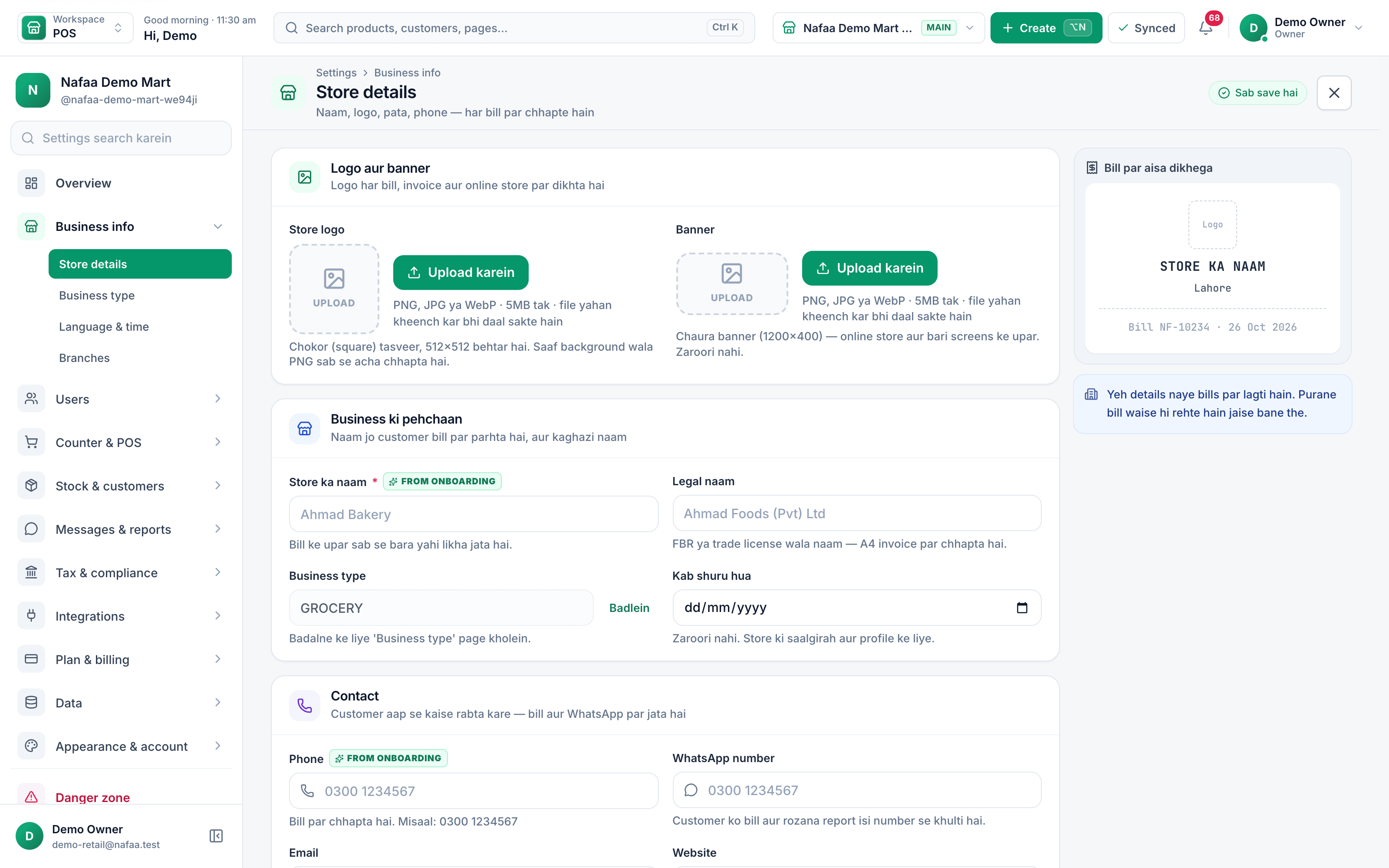
- Upload the logo
- Store name printed on bills
- Live bill preview
Questions
Where do I change the shop name, logo or address later?
Open Settings → Business info → Store details. The logo, Store ka naam, phone, WhatsApp number and address there print on every new bill.
I chose the wrong receipt size. Can I change it?
Yes. Open Settings → Counter & POS → Receipt to change the paper size and design. See receipts and printers.
Related
- Product
POS
Nafaa POS is the billing counter for any business: scan a barcode or tap a quick key, sell by piece, dozen or carton, take cash, card, JazzCash, Easypaisa or khata in one bill, print or WhatsApp the receipt, and keep billing when the internet drops. It runs on the phone, tablet or computer you already have. - Page
How to create your Nafaa account
Sign up for Nafaa in two short parts: name your business and pick its type, then add your name, email and password. Verify the email with a 6-digit code and the 7-day free trial starts, with no card needed. - Page
How to add a product in Nafaa
Add a new item to your shop in three short steps: name and category, cost and selling price, and the stock you have today. The product then shows on the POS counter, in search, on barcode labels and in every stock and profit report. - Page
How to import products from Excel
Bring your whole product list into Nafaa from an Excel or CSV file, or paste cells straight from Excel or Google Sheets. Columns are matched for you, every line is checked in a grid before anything is saved, and existing products can get new stock or prices. - Page
Set up receipts and a receipt printer
Connect a thermal receipt printer by USB, serial or Bluetooth, print a test bill, set 80 mm or 58 mm paper, choose what the receipt shows, and open the cash drawer automatically on cash sales.
Terms used here
Receipt
A receipt is the slip given to a customer as proof of payment, listing what was bought, the prices, any discount, the total and how it was paid.Thermal Receipt Printer
A thermal receipt printer prints bills on heat-sensitive paper rolls without ink, usually 58 mm or 80 mm wide.Opening Stock
Opening stock is the quantity and value of goods a business has at the start of a period, or when it starts using a new system.
Try Nafaa POS on your own products
Add a few items and make a test bill in minutes. The free trial runs for 7 days.