Help center
How to add a product in Nafaa
Add a new item to your shop in three short steps: name and category, cost and selling price, and the stock you have today. The product then shows on the POS counter, in search, on barcode labels and in every stock and profit report.
Updated
Every bill, stock count and profit figure in Nafaa starts with a product. A product has a name, a selling price, a cost and a stock quantity, plus optional details such as category, brand, barcode, packs and photos.
Open Products in the sidebar (the page header reads Maal) and press Naya (new), or press the N key on that page. The editor has three steps on the left: Pehchaan (identity), Qeemat (price) and Stock. You can save from any step with Ctrl + S.
If you have a long list in Excel, adding products one by one is slow. Use bulk import instead.
Add a product
Step 1: Open the editor
Go to Products and press Naya. The page title shows Naya product with your business type.
Step 2: Write the name
Type the name the way customers ask for it, for example "Surf Excel 1kg". This name is used in POS search, on the bill and on labels.
Step 3: Pick a category and unit
Tap a category chip or type a new one. Under Kis hisaab se bikti hai (how it sells), choose Adad (pcs), Kilo, Litre and so on. Stock and price are counted in this unit.
Step 4: Add a barcode or SKU
Scan the barcode printed on the item with Scan, or type it. Leave SKU (apna code) empty or press Auto to make one.
Step 5: Set the price
Press Aage (next). Enter Cost (what one unit costs you) and Bechne ki qeemat (selling price). Nafaa shows the profit per unit and the margin as you type.
Step 6: Enter opening stock
On the Stock step, write how many you have on the shelf under Shuru ka stock, and set Kam stock ki had (low stock level) if you want an alert.
Step 7: Save
Press Bana dein (create) or Ctrl + S. The product is ready to sell on the POS counter.
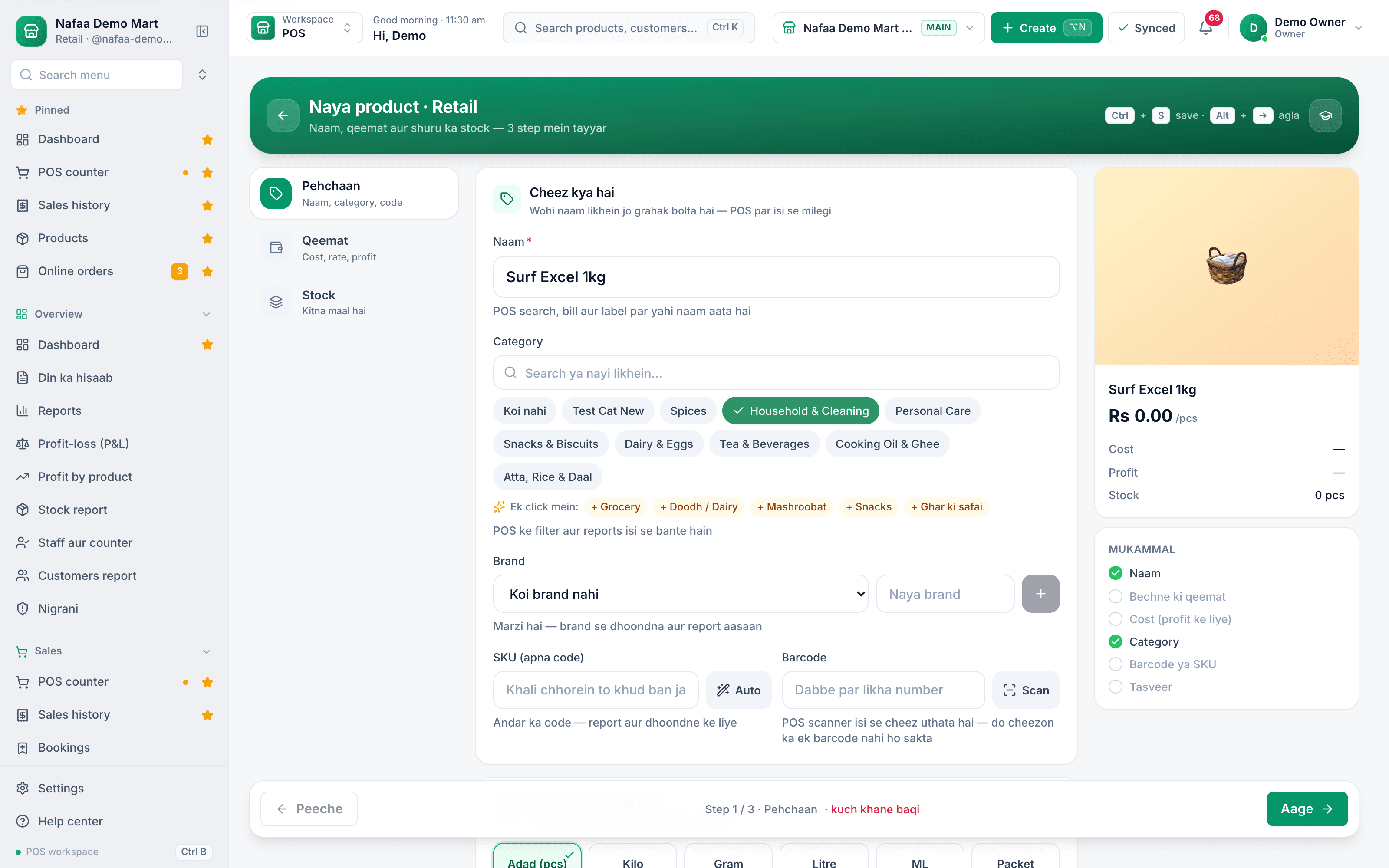
- Three steps
- Name customers use
- Category
- Barcode or Scan
- Aage: next step
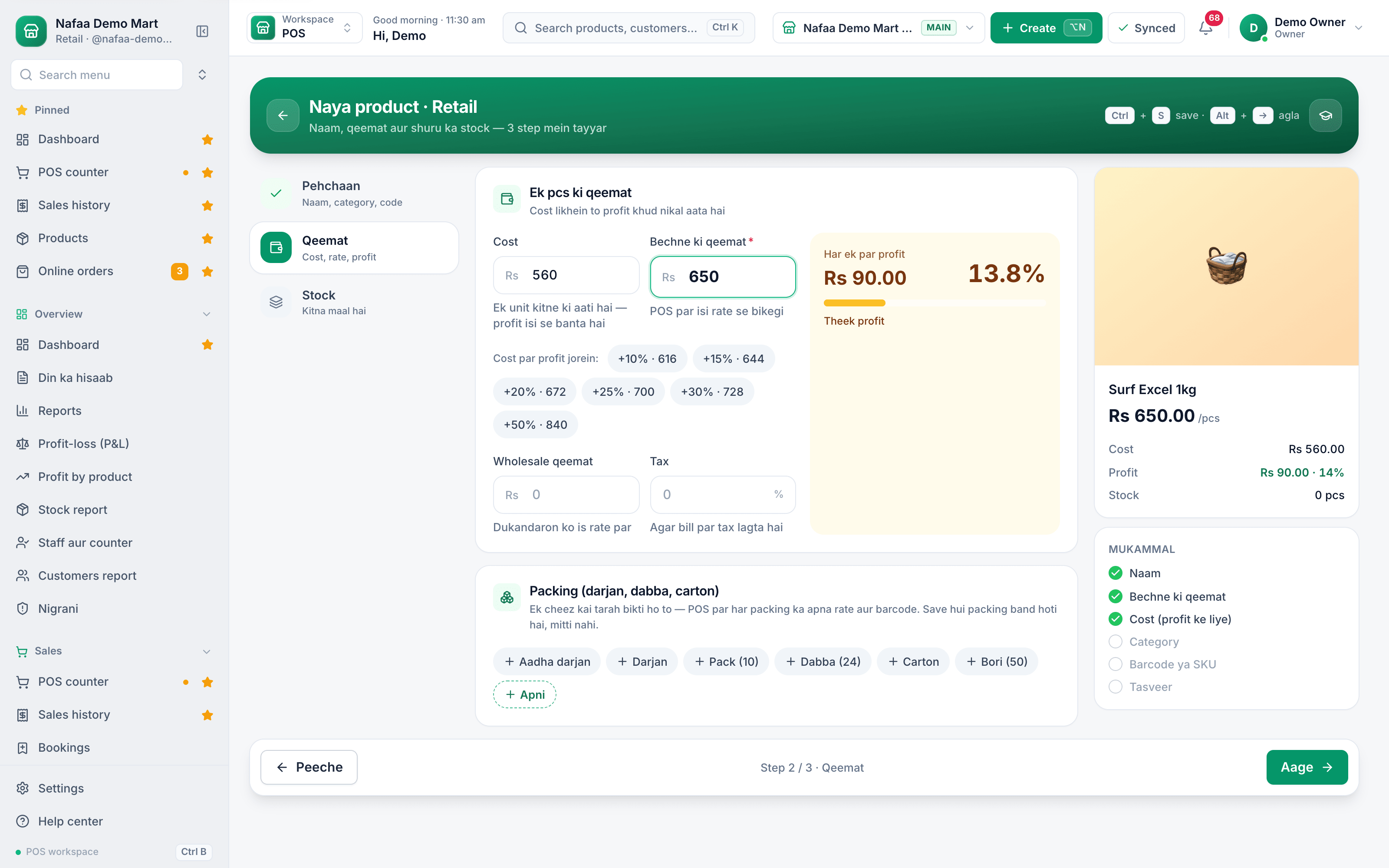
- Cost
- Selling price
- Profit and margin
Questions
Can I add a product without a barcode?
Yes. Only the name, unit and selling price are needed. You can find the product at the counter by name, and print a barcode label for it later from Barcode labels.
What if I leave the cost empty?
The product still sells, but profit reports cannot show a correct profit for it. Add the cost when you know it, or record a purchase, which sets the average cost.
Can I hide a product without deleting it?
Yes. Turn off Chalu (active) on the first step. The product stops showing on the POS but its sales history stays.
Related
- Product
Inventory
Nafaa Inventory keeps stock right in every unit and every branch: products with cost, price and margin, barcodes and labels, combos, low-stock alerts, damage and adjustments with reasons, stock transfers between branches, and a full movement history. Import from Excel or paste from a spreadsheet, and change many prices at once in the bulk editor. - Page
How to sell in units and packs
Sell the same item loose and by the pack: dozen, box, carton or bori. Each pack gets its own rate and barcode, stock is always counted in the base unit, and scanning a carton barcode at the counter puts the carton on the bill. - Page
How to import products from Excel
Bring your whole product list into Nafaa from an Excel or CSV file, or paste cells straight from Excel or Google Sheets. Columns are matched for you, every line is checked in a grid before anything is saved, and existing products can get new stock or prices. - Page
How to print barcode labels
Give products a barcode and print price stickers on a thermal label roll or an A4 sticker sheet. Add items by search, scan or whole category, design the label once for the shop, test print one label, then print the full list. - Page
How to make a bill at the POS counter
Open the POS counter, add items by barcode, name or tile, set quantities, pick the customer and take payment. Covers the one-key cash bill (F12), the checkout window for other payment methods, and what to do on the success screen. - Tool
Profit Margin Calculator
Work out profit, margin and markup from your cost and selling price, or find the price that gives the margin you want. Built for shops in Pakistan: type rupee amounts, add a quantity for total profit, and see why a 25% markup is only a 20% margin.
Terms used here
SKU (Stock Keeping Unit)
An SKU is a code for one exact product variant in stock, so each size, colour or pack size is counted separately.Barcode
A barcode is a machine-readable pattern of bars or squares printed on a product or label that a scanner reads to identify the item.Opening Stock
Opening stock is the quantity and value of goods a business has at the start of a period, or when it starts using a new system.Unit of Measure
A unit of measure is the unit in which a product is bought, stocked or sold, such as piece, dozen, carton, kg, litre or metre.Markup
Markup is the amount added to the cost price to get the selling price, usually expressed as a percentage of cost.
Stop guessing your stock
Nafaa updates stock on every bill and purchase, and shows what to reorder and what has not sold. Try it free for 7 days.