Help center
Set up receipts and a receipt printer
Connect a thermal receipt printer by USB, serial or Bluetooth, print a test bill, set 80 mm or 58 mm paper, choose what the receipt shows, and open the cash drawer automatically on cash sales.
Updated
Nafaa prints receipts in two ways. Browser print works with any printer installed in Windows: the bill opens in a small print window. Direct (tez) (direct, fast) talks to a thermal printer from the browser, prints in about a second with no pop-up, and can open the cash drawer. Direct printing needs Google Chrome or Microsoft Edge.
All printer and receipt settings are under Settings → Counter & POS.
Connect the printer and set the receipt
Step 1: Open POS hardware
Go to Settings → Counter & POS → POS hardware. The cards at the top show the state of the printer, cash drawer, barcode scanner, scale and customer screen.
Step 2: Pick the print method
In Receipt printer choose Browser print or Direct (tez). With Browser print, the printer must be in Windows "Printers & scanners".
Step 3: Connect a direct printer
For Direct, choose how it is connected (USB, Serial / COM or Bluetooth) and click Printer jorein (connect printer). Pick your printer in the browser’s list, then click Test page.
Step 4: Print a test bill
Choose 80mm or 58mm paper and click Test bill (or press T).
Step 5: Open the drawer on cash sales
With Direct printing, turn on Cash sale par khud khule in the Cash drawer card so the drawer opens when a cash bill prints. Abhi kholein opens it now.
Step 6: Design the receipt
Go to Settings → Counter & POS → Receipt. Choose the paper, style and font size, what prints at the top (logo, address, phone), what the bill shows (customer, cashier, savings, khata balance, bill barcode) and your own footer message and return policy.
Step 7: Set auto-print per counter
On the POS counter open POS settings and switch Bill khud print ho (print automatically) on or off, and pick the paper width for that computer.
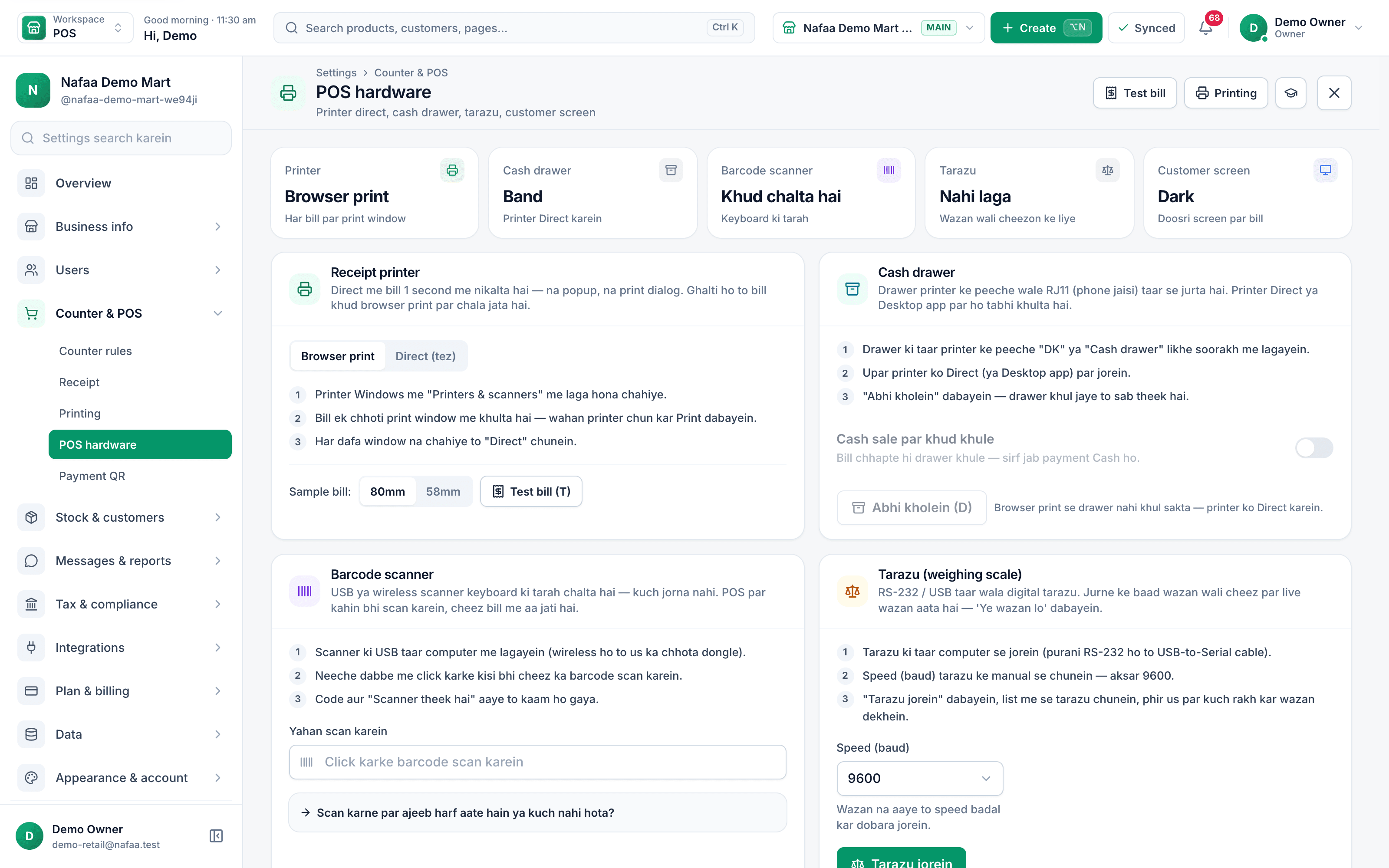
- Device status
- Browser or Direct
- Test bill (T)
- Drawer on cash sale
Questions
Which printers work with Direct printing?
Thermal receipt printers that connect by USB, serial (COM) or Bluetooth and accept standard receipt commands, in 80 mm or 58 mm. Small Bluetooth printers are usually 58 mm.
Can I print bills on A4?
Yes. Pick A4 as the paper in Receipt settings; Settings → Counter & POS → Printing controls A4, PDF, colour and the header and footer of printed reports.
Related
- Product
POS
Nafaa POS is the billing counter for any business: scan a barcode or tap a quick key, sell by piece, dozen or carton, take cash, card, JazzCash, Easypaisa or khata in one bill, print or WhatsApp the receipt, and keep billing when the internet drops. It runs on the phone, tablet or computer you already have. - Page
How to make a bill at the POS counter
Open the POS counter, add items by barcode, name or tile, set quantities, pick the customer and take payment. Covers the one-key cash bill (F12), the checkout window for other payment methods, and what to do on the success screen. - Page
Devices, login and counter hardware
Nafaa runs in the browser on a computer, tablet or phone. Learn how to log in and keep a device remembered, connect a receipt printer, cash drawer, barcode scanner, scale or customer screen on each counter, and log out a lost device. - Page
How to set up your shop after sign-up
Finish the five-step shop setup: business details, first branch, first products, bill and payment settings, and staff. Only the first step is required. Everything else can be skipped and filled in later from Settings, where shop details save by themselves. - Tool
Receipt Maker
Make a shop receipt and print it on a 58 mm or 80 mm thermal printer, or any printer. Add your shop details once, then the items, discount, optional sales tax and payment method; for cash it works out the change. Free, no sign-up, and nothing leaves your browser. - Service
Hardware
Nafaa helps you choose and set up counter hardware that works with the app: barcode scanners, 58 or 80 mm thermal receipt printers, label printers, cash drawers, weighing scales and a customer display, on Windows, Android or in the browser, with setup and testing on your own devices.
Terms used here
Thermal Receipt Printer
A thermal receipt printer prints bills on heat-sensitive paper rolls without ink, usually 58 mm or 80 mm wide.Receipt
A receipt is the slip given to a customer as proof of payment, listing what was bought, the prices, any discount, the total and how it was paid.Cash Drawer
A cash drawer is the lockable drawer under the counter that holds notes and coins and opens when a cash sale is completed.Customer Display
A customer display is a second screen facing the customer at the counter that shows the items, the total and the change as the bill is made.
Get printers and scanners that work with Nafaa
We can supply and set up counter hardware so the first bill prints on day one. Ask us on WhatsApp.