Help center
Devices, login and counter hardware
Nafaa runs in the browser on a computer, tablet or phone. Learn how to log in and keep a device remembered, connect a receipt printer, cash drawer, barcode scanner, scale or customer screen on each counter, and log out a lost device.
Updated
Nafaa opens in a web browser, so the counter can be a laptop, a desktop PC, a tablet or an Android phone. Each person logs in with their own email and password, and the same account works on every device at once.
Counter hardware is set per device. A printer or scale connected on the front counter does not affect the back office laptop, because these settings are stored in that browser.
Log in and set up a counter
Step 1: Log in
Enter your Email and password on the login screen. If you forgot the password, click Password bhool gaye? to get a reset link.
Step 2: Remember the counter device
Tick Is device ko yaad rakhein (remember this device) on your own counter. Next time the email is filled in, and you can log in even when the internet is down. Leave it off on a shared computer.
Step 3: Open the hardware page
Go to Settings → Counter & POS → POS hardware. Cards at the top show the state of the printer, cash drawer, barcode scanner, Tarazu (scale) and customer screen.
Step 4: Connect the receipt printer
Keep Browser print to print through the normal print window, or choose Direct (tez) to print without a dialog over USB, Serial or Bluetooth. Click Test bill to check the paper width.
Step 5: Check the scanner and drawer
A USB or wireless barcode scanner works like a keyboard with no setup; scan into the test box to confirm. The cash drawer plugs into the printer and opens when the printer is set to Direct.
Step 6: Use Chrome or Edge for direct hardware
Direct printing and the scale need Google Chrome or Microsoft Edge on the computer. Other browsers keep using browser print and the scanner as normal.
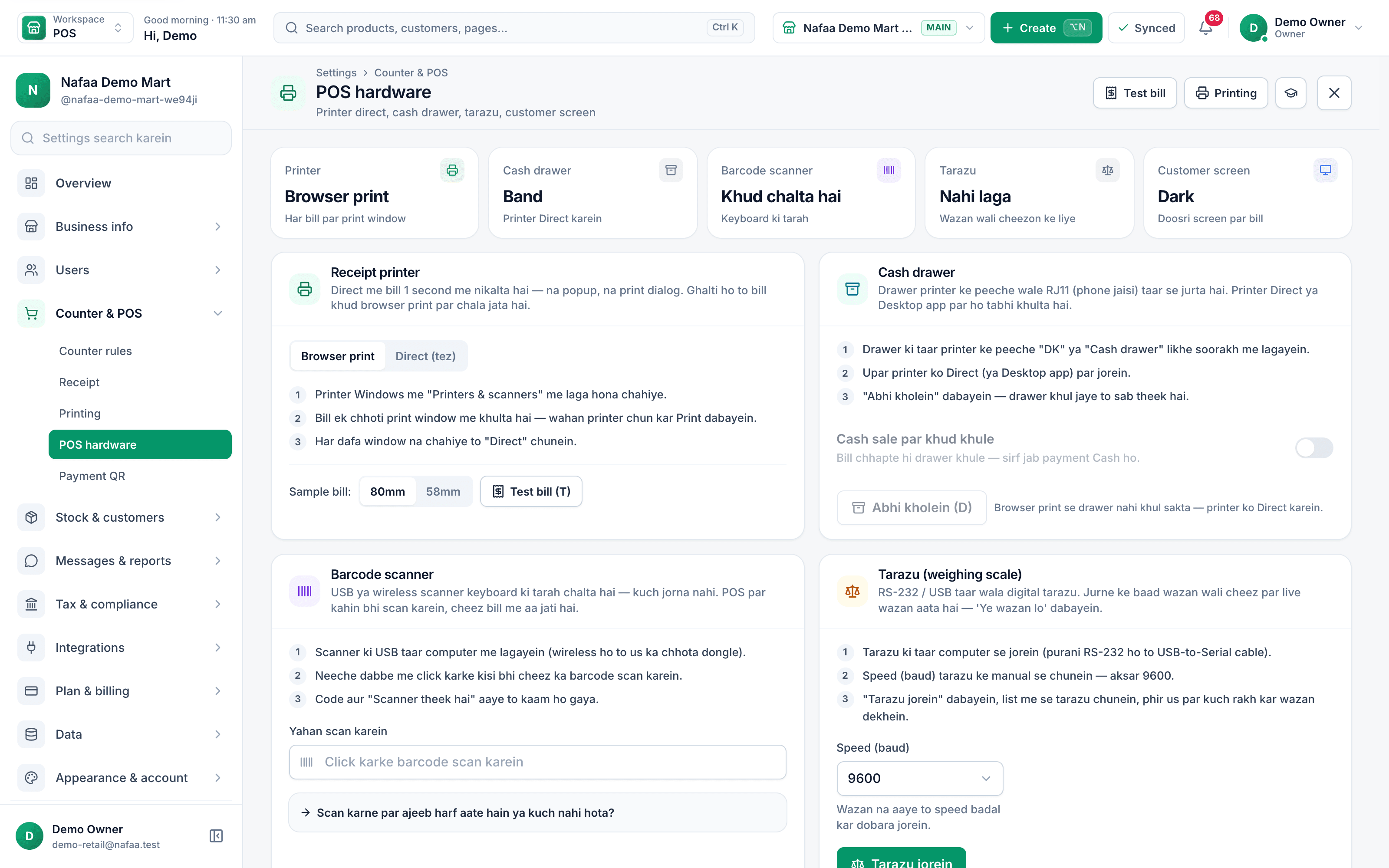
- Status of each device
- Browser print or Direct
- Print a test bill
Questions
Does Nafaa work on a phone?
Yes. It runs in the phone's browser. Small 58 mm Bluetooth printers can connect from the browser on Android when the printer is set to Direct.
Why is my printer greyed out as USB or Serial?
That connection type is not supported by the browser you are using. Open Nafaa in Google Chrome or Microsoft Edge on the computer.
How many devices can use one account?
Each staff member has their own login and can stay logged in on the devices they use. The Active devices list shows every device with a login.
Related
- Product
POS
Nafaa POS is the billing counter for any business: scan a barcode or tap a quick key, sell by piece, dozen or carton, take cash, card, JazzCash, Easypaisa or khata in one bill, print or WhatsApp the receipt, and keep billing when the internet drops. It runs on the phone, tablet or computer you already have. - Page
Set up receipts and a receipt printer
Connect a thermal receipt printer by USB, serial or Bluetooth, print a test bill, set 80 mm or 58 mm paper, choose what the receipt shows, and open the cash drawer automatically on cash sales. - Page
Keep billing when the internet is down
The POS counter keeps making bills without internet. Bills are saved on the device and upload by themselves when the connection is back. Learn what the offline signs mean and where to check bills that are waiting to sync. - Page
How to add staff and give them a login
Add each person who works for you, then give a login to those who use the app. Pick a role (Manager, Cashier or Staff), lock the login to one branch if needed, adjust permissions, and print the login slip with the first password. - Page
How to create your Nafaa account
Sign up for Nafaa in two short parts: name your business and pick its type, then add your name, email and password. Verify the email with a 6-digit code and the 7-day free trial starts, with no card needed.
Terms used here
Thermal Receipt Printer
A thermal receipt printer prints bills on heat-sensitive paper rolls without ink, usually 58 mm or 80 mm wide.Cash Drawer
A cash drawer is the lockable drawer under the counter that holds notes and coins and opens when a cash sale is completed.Barcode
A barcode is a machine-readable pattern of bars or squares printed on a product or label that a scanner reads to identify the item.Customer Display
A customer display is a second screen facing the customer at the counter that shows the items, the total and the change as the bill is made.Offline POS
An offline POS keeps making bills when the internet is down, saving them on the device and sending them to the server when the connection returns.
Try Nafaa POS on your own products
Add a few items and make a test bill in minutes. The free trial runs for 7 days.