Help center
Hold a bill and recall it later
Put a half-made bill on hold with F6 when a customer steps away, serve the next person, then bring the held bill back with its items and customer. Several bills can wait at once.
Updated
A customer remembers one more item and goes back to the shelf, while three people wait behind them. Instead of cancelling the bill, put it on hold, bill the next customer and pick it up again when they return.
A held bill keeps its lines and the selected customer. The green bar on the counter shows an amber button with the number of bills waiting.
Hold and resume a bill
Step 1: Hold the current bill
With items on the bill press F6, or click Hold at the top of the bill. You will see Bill hold ho gaya and the bill clears for the next customer.
Step 2: Serve the next customer
Make and complete the next bill as usual.
Step 3: Resume with one bill waiting
With an empty bill, press F6 again. The held bill comes straight back.
Step 4: Pick from several
When more than one bill is waiting, F6 (or the amber button) opens Hold kiye hue bill (held bills). Each row shows the first items, how long ago it was held and the total. Press its number (1 to 9) or click Resume.
Step 5: Swap bills
If you resume while another bill is open, the open bill goes on hold in its place, so nothing is lost.
Step 6: Remove a bill you no longer need
Click the bin icon on its row to delete it.
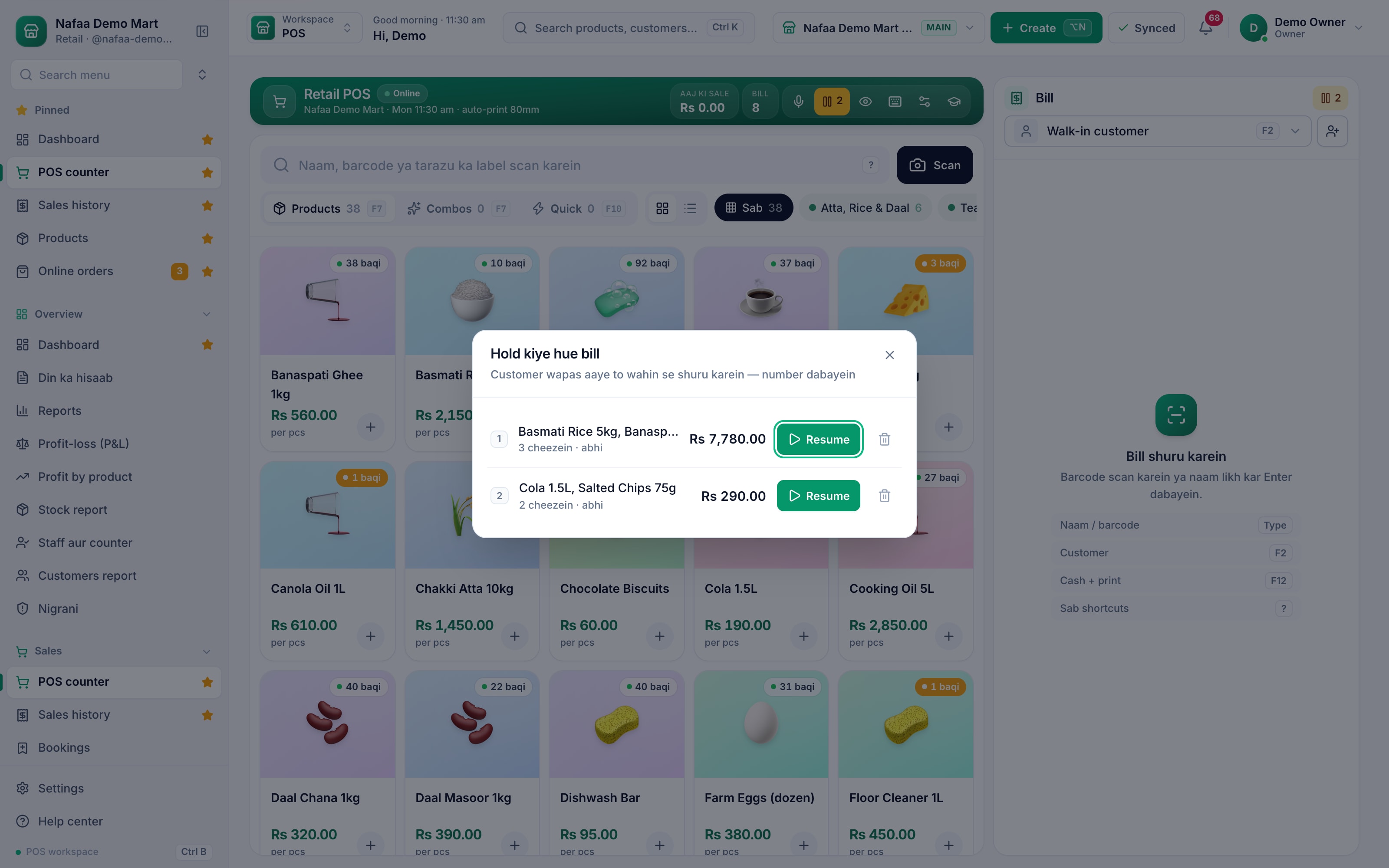
- Held bills (amber)
- Press 1 or 2
- Resume
Questions
Can another counter see my held bill?
No. A held bill lives on the counter where it was held.
Is stock taken when I hold a bill?
No. Stock moves only when the bill is completed.
Does the discount stay on a held bill?
No. The items and the customer are kept, but a discount is cleared when the bill is held. Apply it again after you resume the bill.
Related
- Product
POS
Nafaa POS is the billing counter for any business: scan a barcode or tap a quick key, sell by piece, dozen or carton, take cash, card, JazzCash, Easypaisa or khata in one bill, print or WhatsApp the receipt, and keep billing when the internet drops. It runs on the phone, tablet or computer you already have. - Page
How to make a bill at the POS counter
Open the POS counter, add items by barcode, name or tile, set quantities, pick the customer and take payment. Covers the one-key cash bill (F12), the checkout window for other payment methods, and what to do on the success screen. - Page
POS keyboard shortcuts
Every key on the Nafaa POS counter: search and quantity, the bill lines, customer, discount, hold, payment and checkout. Press ? on the counter to see the same list on screen. - Glossary term
SaaS (Software as a Service)
SaaS, or Software as a Service, is software you use over the internet and pay for on a monthly or yearly plan, instead of buying and installing it once. - Page
Choose a POS counter layout
Pick one of four counter layouts (Classic, Express, Bill bara and Touch) for the whole shop or for one cashier, choose how dense the bill lines are, and switch parts of the counter on or off.
Billing software for a Pakistani counter
Discounts, returns with a PIN, hold and recall, and printed receipts in one screen. Start a 7-day free trial.