Barcode Setup for a Shop: Scanners, Labels and Codes
How to start billing by barcode: which barcode types you will meet, choosing a scanner, printing labels for items without a barcode, handling loose goods and variants, and rolling it out without stopping the counter.
- Published
- Reading time
- 5 min read
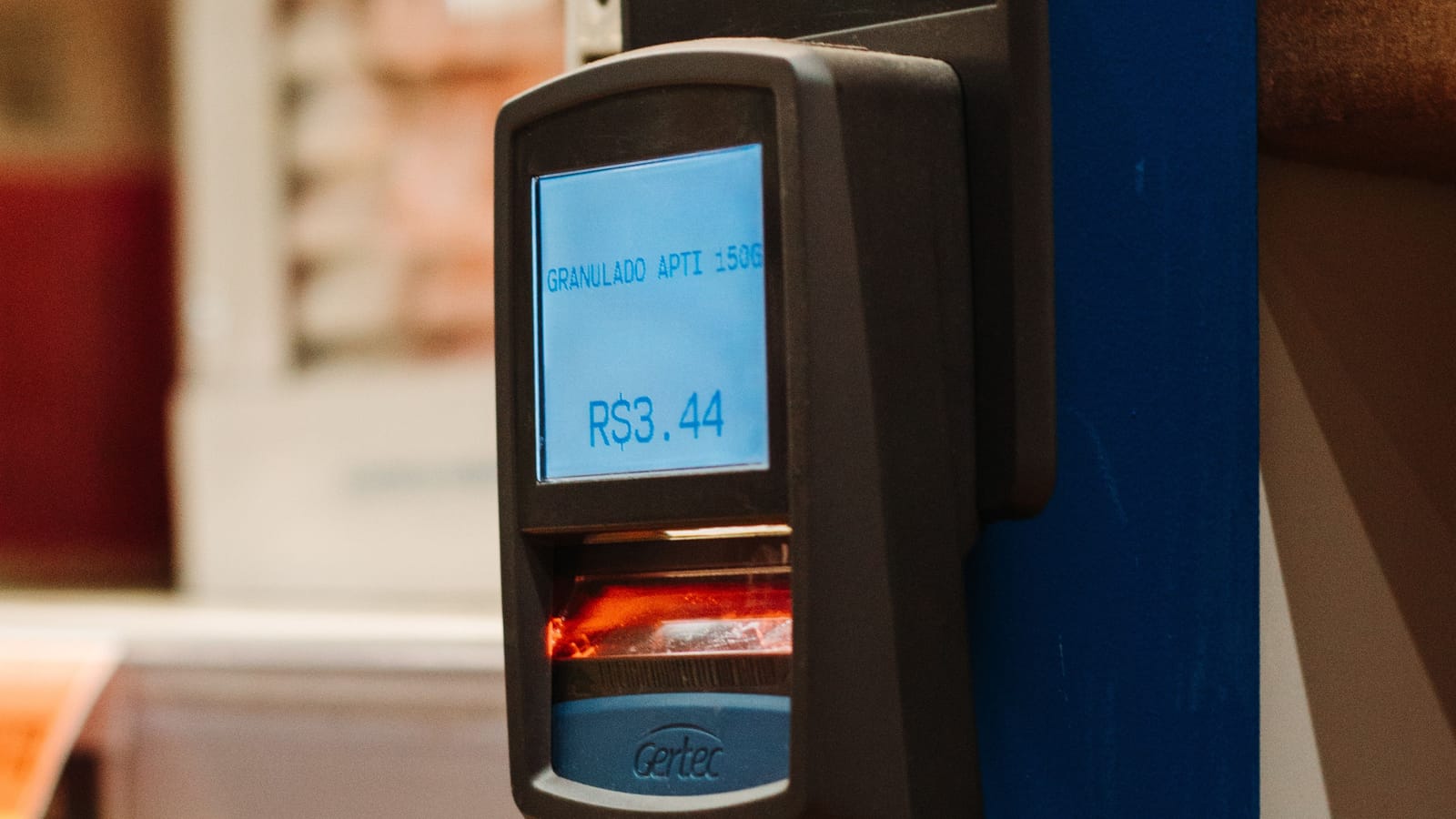
Billing by barcode is the single biggest speed-up for most counters. Instead of searching for "Lipton 95g" among five tea products, the cashier scans and the right item, at the right price, lands on the bill. Fewer wrong items billed also means stock counts that match. Setting it up takes an afternoon of work for a typical shop, plus a few weeks of labelling as stock comes in.
Barcodes you will meet
EAN-13 is the 13-digit barcode printed on most packaged goods sold in shops: biscuits, soap, drinks, cosmetics. The manufacturer gets these numbers through GS1, the global barcode standards body, via the GS1 member organisation in their country. You do not create these; you just scan them once to link them to your product.
Code 128 is a flexible barcode that can hold numbers and letters of any length. It is the usual choice for labels you print yourself: clothes, shoes, loose items you pack, hardware parts. Almost every scanner reads it.
QR codes hold more data and can be read by a phone camera. Some older laser scanners cannot read them, so check before relying on them at the counter.
If you make and pack your own products for sale in other shops (a bakery supplying stores, a spice packer), you will want proper EAN-13 numbers from GS1 so other shops can scan them. For labels used only inside your own shop, Code 128 is enough.
Choosing a scanner
| Type | Good for | Watch for |
|---|---|---|
| Wired USB (1D laser or linear) | Most counters; cheap and reliable | Reads printed 1D barcodes only, not QR or screens |
| Wired USB 2D (imager) | Reads QR codes and barcodes on phone screens | Costs more |
| Wireless or Bluetooth | Scanning heavy items in a trolley, stock counts | Battery charging, range |
| Phone camera | Occasional scanning, stock counts on the floor | Slower than a dedicated scanner for queues |
Most USB scanners act like a keyboard: they "type" the code and press Enter. That means they work with almost any POS without drivers. Test the scanner on a few of your own products before buying, especially small or curved packs and labels printed on shiny paper.
Labels for items without a barcode
Clothes, shoes, loose items, imported goods with a damaged barcode and anything you pack yourself need a label. You have two printing options:
- Thermal label printer with a roll of stickers. Fast and neat; prints one label at a time in any quantity. Best if you label stock every day.
- A4 sticker sheets on an ordinary printer. No new printer needed; good for a batch of labels when a delivery arrives.
Decide what the label shows. Usually: product name, price, the barcode, and for clothes the size and colour. Keep the text large enough to read.
Rolling barcodes out in your shop
Do the fast sellers first. You get most of the speed-up in the first week.
Step 1: Clean your product list
One product per item you sell, with clear names. Variants such as size and colour should be variants of one product, not separate products with similar names.
Step 2: Scan packaged goods once
Go shelf by shelf and scan each packaged product's existing barcode into its product record.
Step 3: Generate codes for the rest
Let the system create codes for items without one, so every item has a unique code.
Step 4: Print labels
Print labels for unlabelled stock, starting with the fastest sellers and the items most often billed wrong.
Step 5: Connect the scanner
Plug in, open the counter, scan a known product and check it lands on the bill.
Step 6: Label new stock on arrival
Make labelling part of receiving a delivery, so the shelf never fills with unlabelled stock again.
Loose goods and weighed items
Rice, daal, sugar, dry fruit and vegetables are sold by weight. You have two choices:
- Bill by weight at the counter: the item has one barcode or quick key, and the cashier enters the weight (or reads it from a connected scale).
- Pre-pack and label: pack common sizes (half kilo, one kilo) in advance, each with its own label. It speeds the queue at busy times.
Many kiryana stores use both: pre-packed sizes for the rush, weighing at the counter for odd amounts.
Common problems and fixes
- Scanner beeps but nothing appears: the barcode is not linked to any product. Link it, then scan again.
- Wrong item appears: two products share one code. Find the duplicate and fix it.
- Label will not scan: printed too small, too light or on glossy paper. Increase size and darkness.
- One product, two pack sizes: a single bottle and a carton of twelve should each have their own code, both pointing to the same product with a different unit.
How Nafaa handles barcodes
In Nafaa you scan a packaged item's barcode into its product, or generate a code for items without one. To try codes before you set up, use the free barcode generator. Each pack unit (piece, dozen, carton) can carry its own barcode while sharing one stock. The label designer prints on a thermal label roll or on A4 sticker sheets; you choose what shows on the sticker, the barcode type (Code 128, EAN-13 or QR), the price, text size and extra lines, and the design is saved for the whole shop. At the counter, a scan adds the item to the bill, and a weighing scale on a serial or USB-serial cable can send the weight straight to the bill for loose goods.
A scan lands on the bill
At the counter, each scan adds the item at its saved price. Items without a barcode are still one search or tap away on the product grid.