Load-Shedding-Proof Billing: Keep the Counter Running
To keep billing through power and internet cuts, put the counter device, printer and router on backup power, keep a second internet connection, use a POS that bills offline and syncs later, and keep a paper fallback for the rare total failure. This guide shows how to set up each layer and what to check after the power returns.
- Published
- Reading time
- 6 min read

In much of Pakistan, a power cut at the counter is not an emergency; it is part of the day. Load shedding means the grid deliberately cuts supply to areas in turn when demand is higher than supply, and the power sector is regulated by NEPRA. For a shop, the effect is simple: the lights go off at a time you do not choose, often when the evening rush starts.
A counter that stops billing during a cut loses more than the sales in that hour. Customers leave, staff write bills on scraps of paper that never reach the system, and the cash count at night does not match. The fix is to plan the counter in layers, so that each failure is covered by the next layer.
Layer 1: power for the counter
Decide which devices must keep running and put only those on backup:
- The counter device (PC, laptop, tablet or phone)
- The receipt printer
- The internet router or modem
- The barcode scanner (usually powered by the PC)
A cash drawer needs no power of its own when it opens through the printer. Lights, fans and fridges belong on the shop's main inverter or generator, not on the counter's backup.
UPS, inverter or solar? A UPS switches over almost instantly, so the PC does not restart. Small units are designed for short run-times, typically 5 to 15 minutes, enough to finish the current bills or bridge the gap until a generator starts. For hour-long cuts, connect the counter to the shop's inverter or solar system, with a small UPS in between so the switch-over does not restart the PC.
Size the backup from the labels. Each device has a power rating on its adapter or label. Add them up. For example, if the counter device, printer and router together draw about 150 watts, an hour of backup needs roughly 150 watt-hours of usable battery, plus a margin for losses and older batteries. Ask your installer to size it from that number, not from the shop's total load.
A laptop or tablet has its own battery, which is why many small shops bill from one: only the printer and router then need backup.
Layer 2: internet backup
When the power goes, the area's internet often goes too, because street cabinets and towers lose power. Keep a second way to connect:
- A phone hotspot from a different mobile network than your main line
- A small battery-powered portable router with a data SIM
- For larger stores, a second fixed line from a different provider
Test the backup every month. A SIM that has not been used for months may have expired data or no balance.
What happens to a bill made offline
Layer 3: a POS that bills offline
Even with backup, there will be times with power but no internet. Your POS must keep billing then. An offline POS keeps a copy of products, prices and customers on the device, saves each new bill locally with its own number, prints the receipt, and sends everything to the account when the connection returns.
Check these points before you rely on any system:
- Can a cashier sign in and open the counter with no internet, on a device that has signed in before?
- Do search, barcode scanning and receipts work offline, not just a reduced screen?
- Can udhaar entries and khata payments be recorded offline?
- If two counters bill offline at once, can their bill numbers clash?
- After a long offline period, can you see what is still waiting to be sent?
A purely online POS stops at the worst moment. A cloud POS with proper offline mode gives you both: the counter runs locally and the owner sees everything once it syncs.
The counter shows whether it is online
The header shows when the counter is offline and how many bills are waiting. Search, scan and receipts run from the copy on the device.
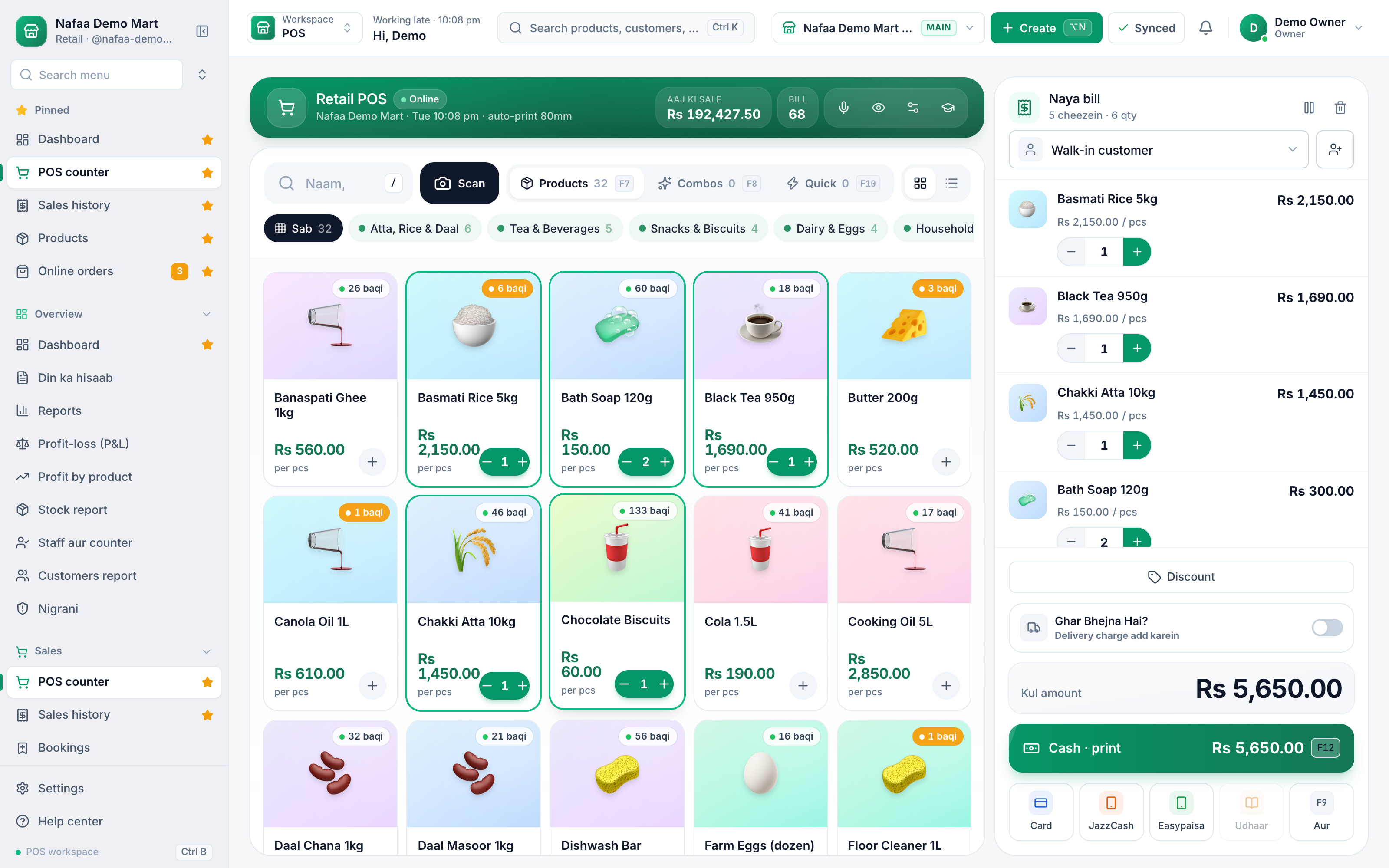
- Online or offline badge
- Sync status
Layer 4: the paper fallback
Only for a total failure: no power, no battery, no device. It should be used rarely.
Step 1: Keep a numbered slip book at the counter
Pre-numbered pages, so a missing slip is noticed. Keep a pen with it.
Step 2: Write the essentials
Slip number, time, items with quantity and price, total, cash or udhaar, and the customer name for udhaar.
Step 3: Keep paper cash separate
Put the cash for paper bills in an envelope with the slips, so the count is easy later.
Step 4: Enter every slip the same day
When the counter is back, enter each slip as a bill and write the system bill number on the slip.
Step 5: Check the count
At closing, paper cash plus system cash must match the drawer. Keep the slips with the day's papers.
After the power returns: check the sync
Once the connection is back, offline bills go to the account. Before you close the day:
- Open the sync status and confirm nothing is still waiting or failed.
- If an offline sale could not be saved, for example because the stock was already sold at another counter, read the reason, fix it and send it again. Do not delete it.
- Then do your normal daily cash closing, so offline cash is counted with the rest.
A monthly drill
Once a month, at a quiet hour, switch off the counter's mains power and the router together. Time how long the backup takes over, bill a test sale offline, print it, then restore power and watch it sync. Ten minutes of practice means staff know exactly what to do in a real cut.
How Nafaa helps
Nafaa keeps billing when the internet drops. Products, prices, customers and settings are kept on the device; new bills, khata payments, new customers and expenses wait in an offline queue and sync on their own when the connection returns. A device that has signed in once can open the counter without internet, and each device numbers its offline bills with its own code so two counters never clash. The top bar shows whether you are online and how many items are pending, and the Sync Center lists every change, retries failed items instead of deleting them and shows the reason when stock blocked a sale. Nafaa also reminds you weekly to back up the data on the device. Read more on offline POS, and see our POS hardware kit guide for the backup to put under the counter.
Sources
- Load shedding · Wikipedia · Accessed
- Uninterruptible power supply · Wikipedia · Accessed
- National Electric Power Regulatory Authority (NEPRA) · NEPRA · Accessed

