How to Set Up WhatsApp Business for Your Shop
Put the WhatsApp Business app on a separate shop number, fill in the business profile, add your top products to the catalogue, and use labels, quick replies and away messages so orders do not get lost. Message only people who agreed to hear from you, and stop the moment someone asks.
- Published
- Reading time
- 6 min read
For many Pakistani shops, WhatsApp is already the second counter. Customers send a list for home delivery, ask whether a size is in stock, send a screenshot of a wallet payment, or ask for their khata balance. The trouble starts when all of this lands on the owner's personal number, between family groups and forwarded videos. Orders get missed, staff cannot help, and nobody knows which chats still need a reply.
The WhatsApp Business app is built for this. It is a separate app from normal WhatsApp, made for small businesses, with a business profile, a catalogue and tools for replying faster. This guide walks through setting it up properly for a shop. For ready-to-use message templates, see our post on WhatsApp messages that bring customers back.
Step 1: choose the shop's number
Use a separate SIM for the shop if you can, not your personal number. A shop number:
- can stay with the business if a staff member or manager handles it;
- keeps family chats and customer chats apart;
- can be printed on bills, bags, the signboard and your Google listing without exposing your personal number.
Keep the phone with that SIM at the counter, charged, with a power bank for load-shedding. Write the number on every bill so customers save it.
Step 2: fill in the business profile
WhatsApp describes the profile as a place for "helpful information for your customers in one place". Fill in every field:
- Name exactly as on your signboard, so customers recognise you.
- Category, such as grocery store, pharmacy or clothing store.
- Address with a landmark ("near Jamia Masjid, Block C").
- Hours, including the Friday break and Ramadan timings when they change.
- Description: one or two lines on what you sell and whether you deliver.
- A clear logo or shop photo as the profile picture.
A complete profile also helps the app's default quick replies, which draw on this information.
Step 3: add your catalogue
The catalogue lets customers browse items and prices inside WhatsApp. Do not try to add your whole stock. Start with the items people ask about most: your top twenty sellers, new arrivals, and anything you deliver. Use a clear photo on a plain background, the name customers use, and the current price. Then keep it honest: if an item is out of stock or the price has changed, update or hide it the same day. A catalogue with old prices causes more arguments than having none.
Step 4: labels for every order stage
Labels are coloured tags on chats. Use a small fixed set, the same for everyone who handles the phone, and look at the "New order" label first thing every morning.
Step 1: New order
Every chat with a new order gets this label as soon as it arrives.
Step 2: Confirmed
You have checked stock and replied with the total and delivery time.
Step 3: Paid
Payment confirmed in your own bank or wallet app, not from a screenshot alone.
Step 4: Out for delivery
The rider has left; the customer knows when to expect it.
Step 5: Udhaar
The customer took goods on credit and the balance is in your khata.
Step 5: quick replies for the questions you answer every day
Quick replies are saved messages you send with a shortcut. According to WhatsApp's help page, you create them from the Tools tab under Quick replies, and in a chat you type "/" to see them all, including the default ones. The app allows up to 50.
Good quick replies for a shop:
/timing: shop hours and the Friday break./delivery: delivery areas, minimum order and charges, if any./pay: your JazzCash, Easypaisa, Raast or bank details, with "please send a screenshot and we will confirm in our app"./location: address with a landmark and a map link./order: "Shukriya, aap ka order mil gaya. Total aur waqt thori der me bata dete hain."
Read each quick reply aloud before saving. If it sounds like a robot, rewrite it.
Step 6: greeting and away messages
The app can greet people when they start a conversation and reply when you are away. Use the greeting for first-time customers: who you are, your hours, and how to order. Use the away message after closing time: "Dukaan band hai, subah 9 baje jawab denge." Keep both short, and turn the away message off when you open; a customer who gets "we are closed" at noon will go elsewhere.
From chat to delivered order
Step 7: broadcast lists, and the rule of permission
A broadcast list sends one message to many customers, and each person receives it as a private chat. As our retention guide explains, it reaches only people who have saved your number, which is one more reason to print the number on every bill.
Permission matters more than any feature. WhatsApp's Business Messaging Policy says a business may contact people only when they have given their number and opted in to hear from it, and that you must respect every request to stop. In practice:
- Ask at the counter: "Naye maal ki khabar WhatsApp par bhej dein?" Add the customer to the list only if they say yes.
- Make separate lists by interest: school items, ladies' suits, monthly ration. Nobody wants all of it.
- When someone says stop, remove them that day.
- Never add customers to a group without asking. A group shows everyone's number to everyone.
Common mistakes
- Two staff replying to the same chat with different prices. Decide who handles the phone at each time of day.
- Accepting a payment screenshot as proof. Screenshots can be edited; confirm in your own app.
- Forgetting to bill WhatsApp orders. Every WhatsApp sale should go through the same billing as walk-ins, or your stock and profit will be wrong.
The bill goes out on WhatsApp
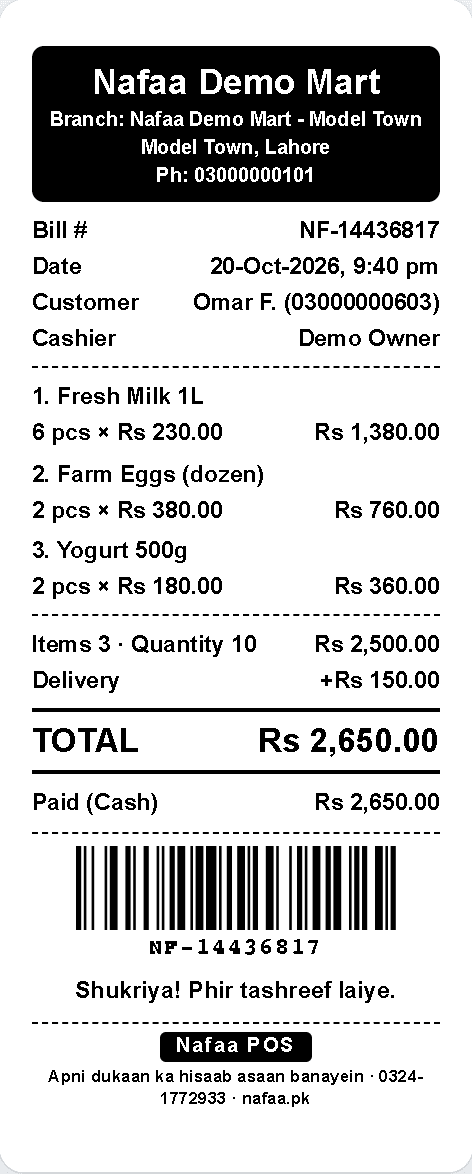
After a sale, the same bill the printer makes can be sent to the customer on WhatsApp instead of paper.
How Nafaa helps
Nafaa works with the WhatsApp you already have; it needs no API and charges no message fees. In Settings, you write the shop's messages in your own words: the bill, a credit reminder, a thank-you and a message of your own, with blanks such as the customer's name and balance filled in for each person. After a sale, pressing W on the success screen opens WhatsApp with the bill ready, and you press Send. The khata has a WhatsApp reminder on every row, discount codes can be shared on WhatsApp, and the reorder list can go to a supplier the same way.
If WhatsApp orders are growing, the online store lets customers order from a shop page instead, with orders arriving at the counter. See the WhatsApp and SMS page for more.
Sources
- WhatsApp Business app · WhatsApp · Accessed
- How to use quick replies · WhatsApp Help Center · Accessed
- WhatsApp Business Messaging Policy · WhatsApp · Accessed


