Sales Tax in Punjab: A Guide for Retailers and Service Businesses
In Punjab, sales tax on goods is federal and handled by FBR, while sales tax on services is collected by the Punjab Revenue Authority (PRA). This guide explains which one applies to your business, how registration and returns work, and where to find the current rates.
- Published
- Reading time
- 5 min read

Ask ten shopkeepers in Lahore who collects sales tax and you may get three answers: FBR, PRA, or "the government". The confusion is understandable, because in Punjab two different bodies collect sales tax on two different things. Getting this right is the first step, because it decides where you register, where you file and which rules apply to your counter.
This guide covers the split, the registration path, what returns involve, and the mistakes that cause the most trouble. It deliberately does not list tax rates: rates change with each budget and differ by service, so the only safe place to read them is the authority's own schedule.
Goods or services: who collects what
Sales tax on goods is a federal tax under the Sales Tax Act, 1990, collected by the Federal Board of Revenue. A kiryana store, a garments shop, an electronics dealer or a pharmacy selling goods deals with FBR for sales tax, even though it is in Punjab. Larger retailers that count as Tier-1 also have to connect their POS to FBR (see our FBR POS integration guide).
Sales tax on services in Punjab is a provincial tax under the Punjab Sales Tax on Services Act, 2012, collected by the Punjab Revenue Authority (PRA). Restaurants, caterers, salons, gyms, hotels, courier services, consultants and many other service providers deal with PRA.
| Your business | Mainly sells | Sales tax goes to |
|---|---|---|
| Kiryana, garments, hardware, pharmacy | Goods | FBR (federal) |
| Restaurant, café, caterer | Services (food service) | PRA |
| Salon, gym, spa | Services | PRA |
| Shop that also repairs or installs | Both | Possibly both; ask an adviser |
Some businesses do both. A mobile shop that sells phones (goods) and repairs them (a service), or a bakery that sells packed goods and runs a dine-in café, may have obligations on each side. This is where an adviser earns their fee.
Registering with PRA
PRA registration is done online on PRA's e-portal. PRA publishes an e-Registration user manual that walks through the screens. Before you start, keep these ready:
- Your NTN from FBR (most PRA registrations start from it)
- CNIC of the owner or directors
- Business address and the nature of the service
- Bank account details of the business
- Utility bill or tenancy papers for the premises
The usual path for a service business
Step 1: Get an NTN from FBR
Register on FBR's IRIS portal if you do not already have a National Tax Number.
Step 2: Register with PRA
Apply on PRA's e-portal using the e-Registration manual, and choose the service category that matches your business.
Step 3: Check your rate in the schedule
Read the current rate for your service category on PRA's site. Do not copy a rate from a competitor's bill.
Step 4: Set up invoicing
If PRA requires your category to report invoices electronically, connect your billing to PRA's e-IMS so each bill gets a PRA fiscal number.
Step 5: File returns on time
File on PRA's portal. The return filing manual and FAQs on the PRA site explain the form and the due dates.
Electronic invoices for restaurants and others
PRA runs an electronic invoice monitoring system (e-IMS). PRA's site links to e-IMS services and a technical specification for the software that connects to it. The PRA integration page explains who must connect and how. Where your category is covered, each bill your counter prints is reported to PRA and carries a PRA fiscal number. PRA's official Android app, linked from its home page, lets taxpayers and customers use PRA services on the phone.
In practice this works much like FBR's POS integration: your billing software sends each invoice, receives a number back, and prints it on the receipt.
PRA, SRB and KPRA sit next to FBR
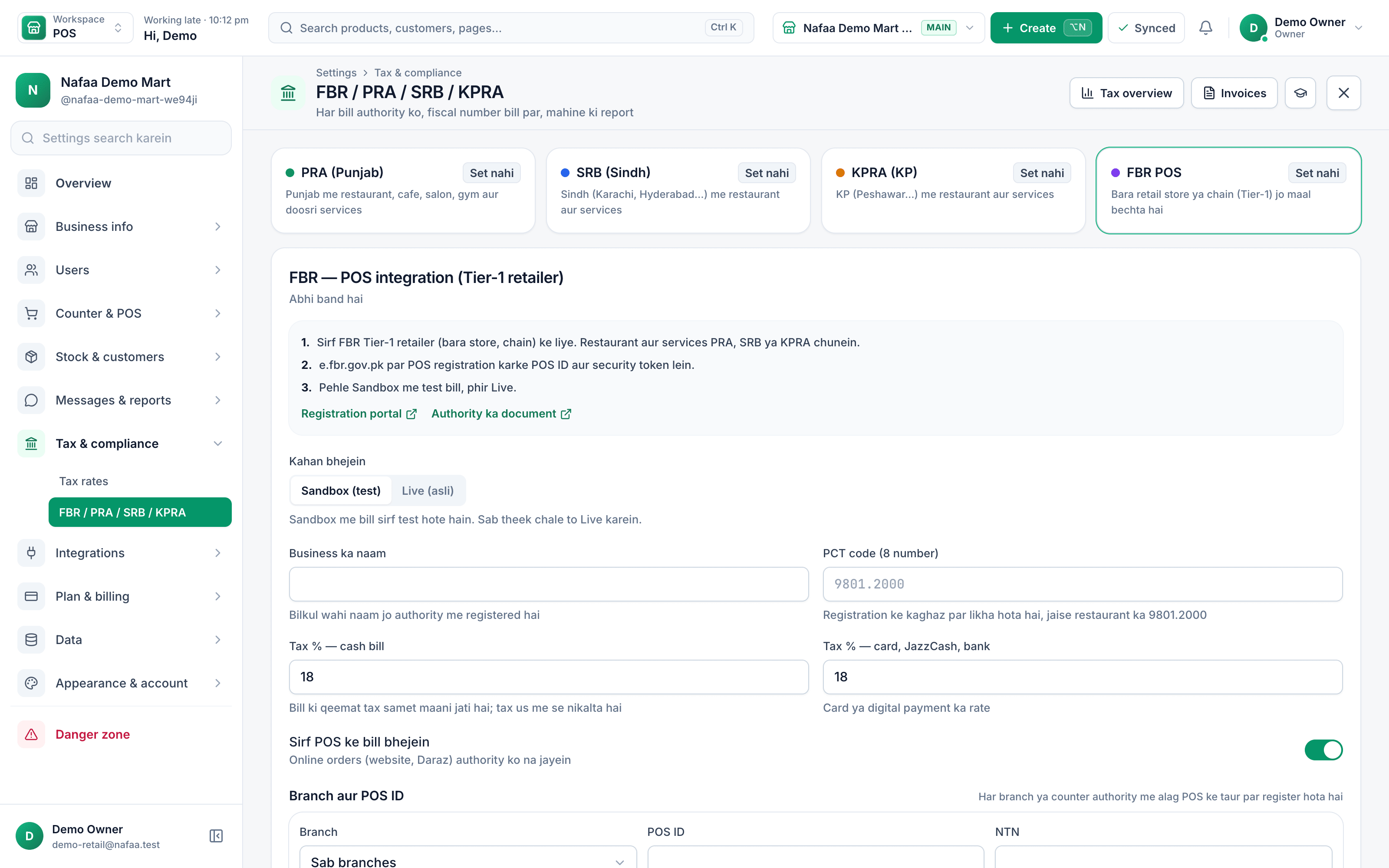
Nafaa keeps each tax authority on its own tab in tax settings, so a restaurant in Lahore connects to PRA while a retailer connects to FBR.
How Nafaa fits in
Nafaa offers optional FBR/PRA integration. For a service business in Punjab, the PRA connection sends each bill to PRA's e-IMS, prints the fiscal number and QR code on the receipt, and handles returns as returns rather than negative sales. The same tax screen has tabs for Sindh (SRB) and Khyber Pakhtunkhwa (KPRA) if you have branches outside Punjab.
The software does not decide your rate or your category. You set the rate from PRA's schedule, and Nafaa applies it to every bill.
Common mistakes
- Registering with the wrong authority. A restaurant registered only with FBR, or a shop selling goods registered only with PRA, is not covered for the tax it actually owes.
- Copying a rate from someone else. Rates differ by service and can depend on how the customer pays. Read your own category in the schedule.
- Treating discounts loosely. Tax is worked out on the amount the rules say, so a discount given "off the books" can leave the bill and the return out of step.
- Missing a return because there were no sales. Many authorities expect a return even for a quiet month. Check whether a nil return is required for you.
- Mixing personal and business bank accounts. It makes reconciling the return much harder.
Where to read more
PRA's home page links to registration, return filing manuals, FAQs, taxpayer verification and e-IMS. For goods, start at FBR's POS legal provisions page. Both are listed below with the date we last checked them.
Official sources
- Punjab Revenue Authority (home, e-Registration, return filing and e-IMS links) · Punjab Revenue Authority · Accessed
- PRA e-Registration user manual · Punjab Revenue Authority · Accessed
- PRA IRIS e-portal (registration, returns, verification) · Punjab Revenue Authority · Accessed
- PRA e-IMS services (electronic invoice monitoring) · Punjab Revenue Authority · Accessed
- POS Legal Provisions (federal sales tax on goods, Tier-1 retailers) · Federal Board of Revenue · Accessed
- IRIS taxpayer portal · Federal Board of Revenue · Accessed
