Digital Payments at the Counter: JazzCash, Easypaisa, Raast and Cards
A shop can take JazzCash, Easypaisa, Raast, bank transfers and cards safely if it uses business accounts, shows a QR at the counter, records the method on every bill and confirms each payment in its own app, never from a customer's screenshot. At closing, match each method against its account, the same way you count the cash drawer.
- Published
- Reading time
- 7 min read
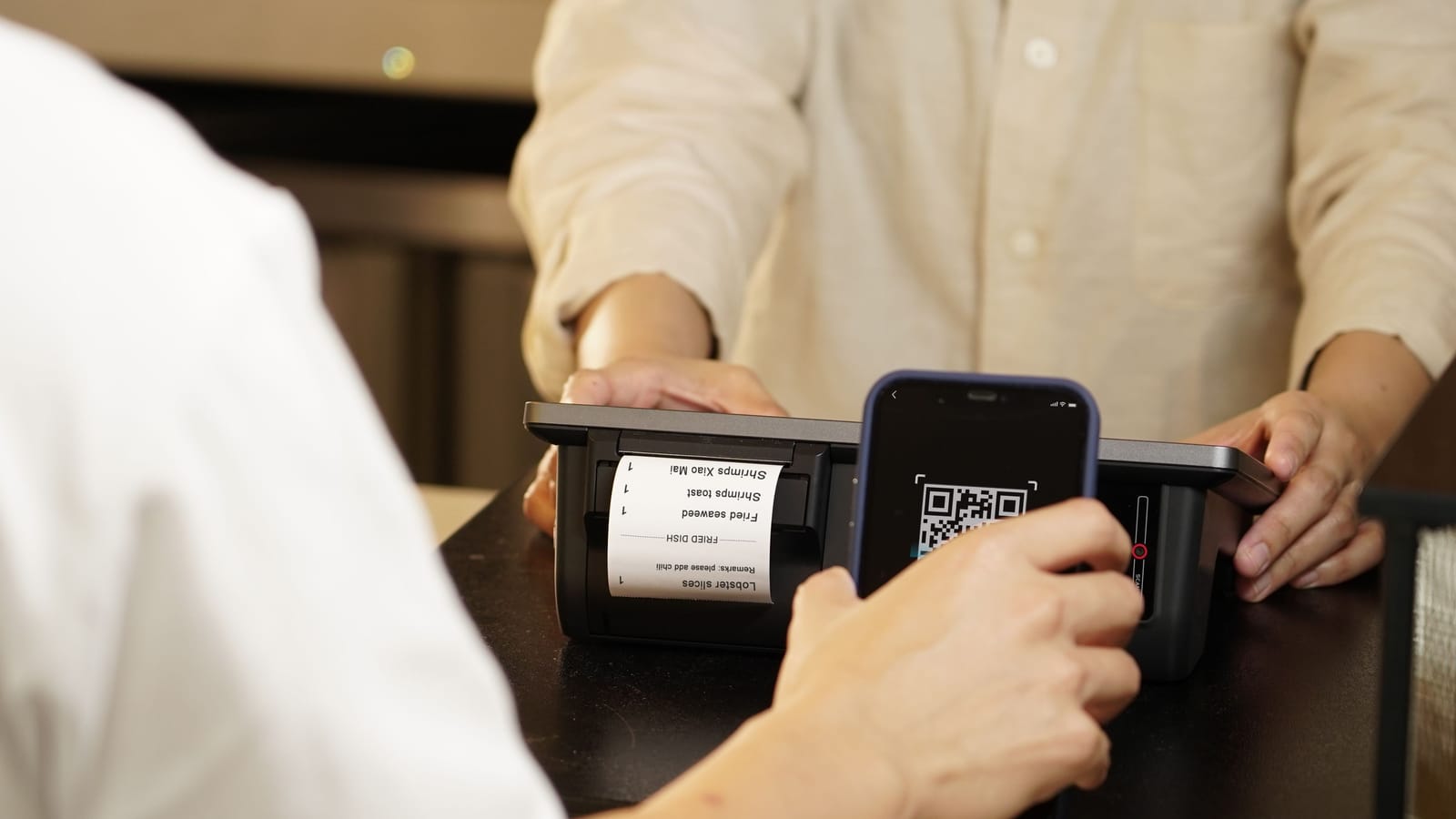
A few years ago, almost every bill at a Pakistani shop was paid in cash. Today, many customers pay from a phone: a JazzCash or Easypaisa transfer, a scan of a QR code, or a bank app. For the shop, digital money has real advantages: less cash to count and carry, less change to arrange, and payments from customers who are not at the counter, such as udhaar paid from home.
It also brings new work and new risks. A wallet payment does not drop into the galla, so it has to be checked and recorded differently. This guide covers the main ways to get paid, how to set them up, how to record and reconcile them every day, and the frauds to watch for.
The main options
| Method | How the customer pays | Where the money lands |
|---|---|---|
| JazzCash | Transfer to your wallet number or scan your QR from the JazzCash app | Your JazzCash account |
| Easypaisa | Transfer to your account or scan your QR from the Easypaisa app | Your Easypaisa account |
| Raast | From their bank or wallet app, to your Raast ID or by scanning a Raast QR | The bank account linked to your Raast ID |
| Bank transfer | Inter-bank transfer to your account number or IBAN | Your bank account |
| Card | Tap or insert a card on a terminal from your bank | Your bank account, after the bank's settlement |
A few public facts help explain these options. JazzCash was launched in 2012 as MobiCash by Mobilink, now Jazz, and offers QR code payments. Easypaisa began in 2009 at Telenor Microfinance Bank and received Pakistan's first digital bank licence from the State Bank of Pakistan in January 2025. Raast is the instant payment system of the State Bank of Pakistan, launched on 11 January 2021 and operated by an SBP subsidiary. It lets people pay with a Raast ID linked to their mobile number and bank account, and it handles person-to-merchant payments as well as transfers between people.
Charges, limits and merchant terms differ between providers and change over time. Ask your bank or wallet provider, in writing, what you will pay to receive money and what limits apply before you put a QR on the counter.
Setting up digital payments
Step 1: Use a business account
Open a merchant or business account with your wallet provider or bank, in the shop's or owner's name. Keep it separate from your personal account so the statement shows only shop money.
Step 2: Get your QR codes
Download the QR from your wallet's business app or your bank app (for Raast, the bank app's QR). Print it clearly and fix it at the counter where the customer can scan without reaching over.
Step 3: Turn on notifications
Make sure the phone at the counter, or the owner's phone, shows a notification for every incoming payment from the official app.
Step 4: Decide who confirms
Only someone who can see the account confirms a payment: the owner, the manager, or a cashier with the merchant app on the counter phone.
Step 5: Test it
Send a small amount from another phone to each QR and check that it arrives in the right account.
Record the method on every bill
The most common mistake is recording every bill as cash. Then the drawer is "short" every evening by exactly the amount paid by wallet, and nobody can tell which difference is real.
Every bill needs its payment method, and a bill paid two ways needs both. If a customer pays 3,000 rupees in cash and 2,450 rupees by Easypaisa for a 5,450-rupee bill, record it as a split payment with both parts. If part of the bill goes on credit, record that too; our post on cash versus credit sales explains why it matters.
Confirm in your own app, every time
A payment is confirmed only when you see it in your own account: the official app's notification, the transaction list, or the bank statement. Do not accept:
- a screenshot on the customer's phone;
- a forwarded SMS;
- "bhai, bhej diya hai, aa jayega".
Screenshots and SMS messages are easy to fake. On a busy counter, ask the customer to wait a moment while you check, and make that a rule for everyone, regulars included.
From QR to a matched account
Reconcile each method every day
Cash is counted in the drawer. Digital money is checked against its account. At closing, take the day's totals by method from your sales and compare each one with the account. An illustrative example for one day:
| Method | Recorded on bills | In the account | Difference |
|---|---|---|---|
| Cash | 52,000 rupees | 51,800 rupees counted in the drawer | 200 rupees short |
| JazzCash | 14,500 rupees | 14,500 rupees | None |
| Easypaisa | 9,000 rupees | 9,600 rupees | 600 rupees over |
| Bank and Raast | 6,500 rupees | 6,500 rupees | None |
| Card | 3,000 rupees | Shows after settlement | Check next day |
The Easypaisa account has 600 rupees more than the bills say. Usually this means a bill was recorded as cash when the customer actually paid by Easypaisa, which would also explain part of a cash difference. Find the bill and correct it the same day, while staff still remember. Our daily cash closing routine covers counting the drawer itself.
Refunds
Return money the way it came. A customer who paid by JazzCash gets the refund to the same JazzCash number, and you record the refund with that method. Cash refunds for digital payments make both the drawer and the wallet wrong, and they are a common way for money to leak.
Fraud to watch for
- Fake screenshots. The most common trick. Always check your own app.
- Fake "payment received" SMS from an ordinary mobile number rather than the provider's official sender.
- "Wrong transfer" calls. Someone claims they sent money to you by mistake and asks you to send it back. Check your statement first; if the money did not arrive, there is nothing to return.
- Overpayment requests. A customer "accidentally" sends more and asks for the difference in cash. Confirm the full amount in your account before handing over anything.
- Calls asking for your PIN or OTP. No bank or wallet provider needs them. Never share them, and tell your staff the same.
The method is chosen at checkout
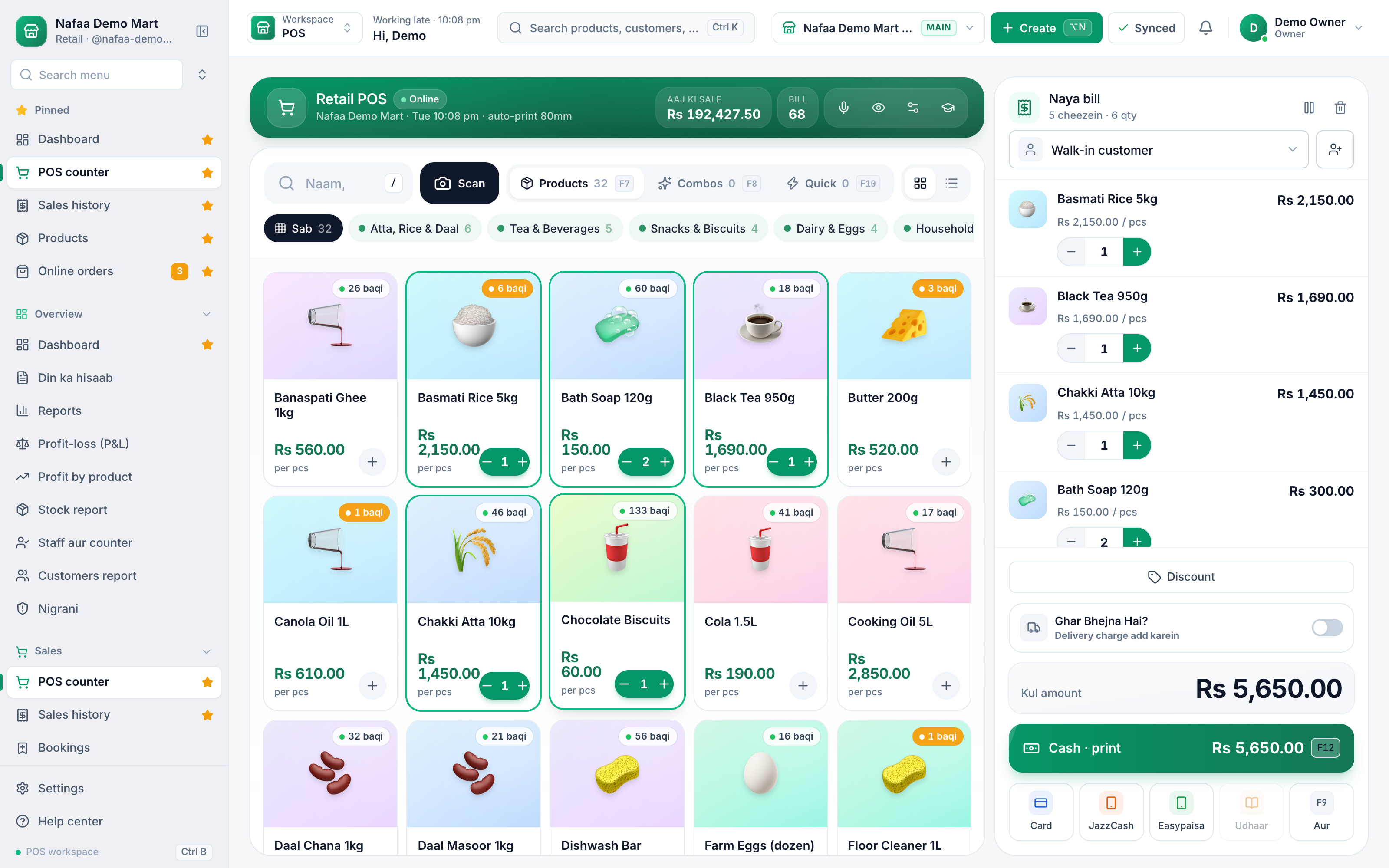
The bill is built on the POS. At checkout the cashier picks the method with one key: F1 cash, F3 JazzCash, F4 Easypaisa, F5 card, F7 bank.
How Nafaa helps
Nafaa records the payment method on every bill: cash, JazzCash, Easypaisa, card or bank, each with its own key at checkout, and a split payment for bills paid more than one way. In Settings → Payment QR, the shop adds its own QR from a bank (Raast), JazzCash or Easypaisa, from a screenshot or the QR text. The POS then shows that QR at checkout, with the bill amount included when the QR supports it, on the customer display, and on unpaid bills so a customer can pay udhaar from home. The money goes straight to the shop's account; Nafaa is not in between and takes no fee, so the guide on that page reminds the cashier to confirm the payment on the phone before completing the bill.
Cash goes to the drawer and everything else to its own account. The Shop accounts page shows money in and out of cash, bank, card, JazzCash and Easypaisa accounts, with the real balance of each, and a return can send money back by the method it came in. See the Payments page and the glossary entry on Raast QR for more.

